> ## Documentation Index
> Fetch the complete documentation index at: https://hilos-40.mintlify.site/llms.txt
> Use this file to discover all available pages before exploring further.
# HubSpot Workflows
The video shows an outdated version of the Hilos' Flow Builder, however the
steps and principles remain the same. We will update the video soon.
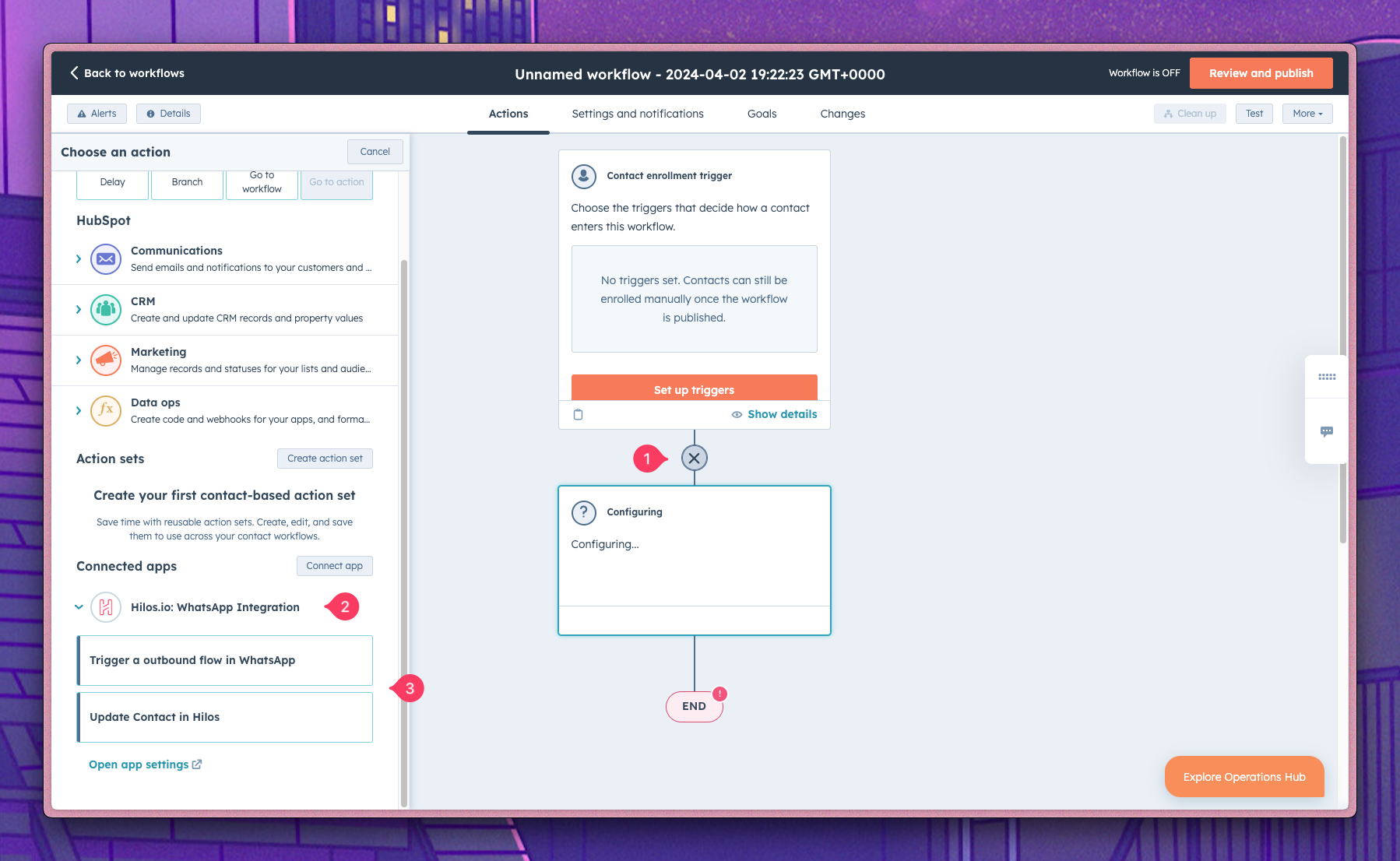
Hilos' HubSpot integration allows you to use HubSpot workflows to update a contact on Hilos or trigger an outbound flow. To do so create a new workflow in HubSpot and when adding a new step you'll see the Hilos available actions under the **Connected Apps** section:
## Update a contact on Hilos
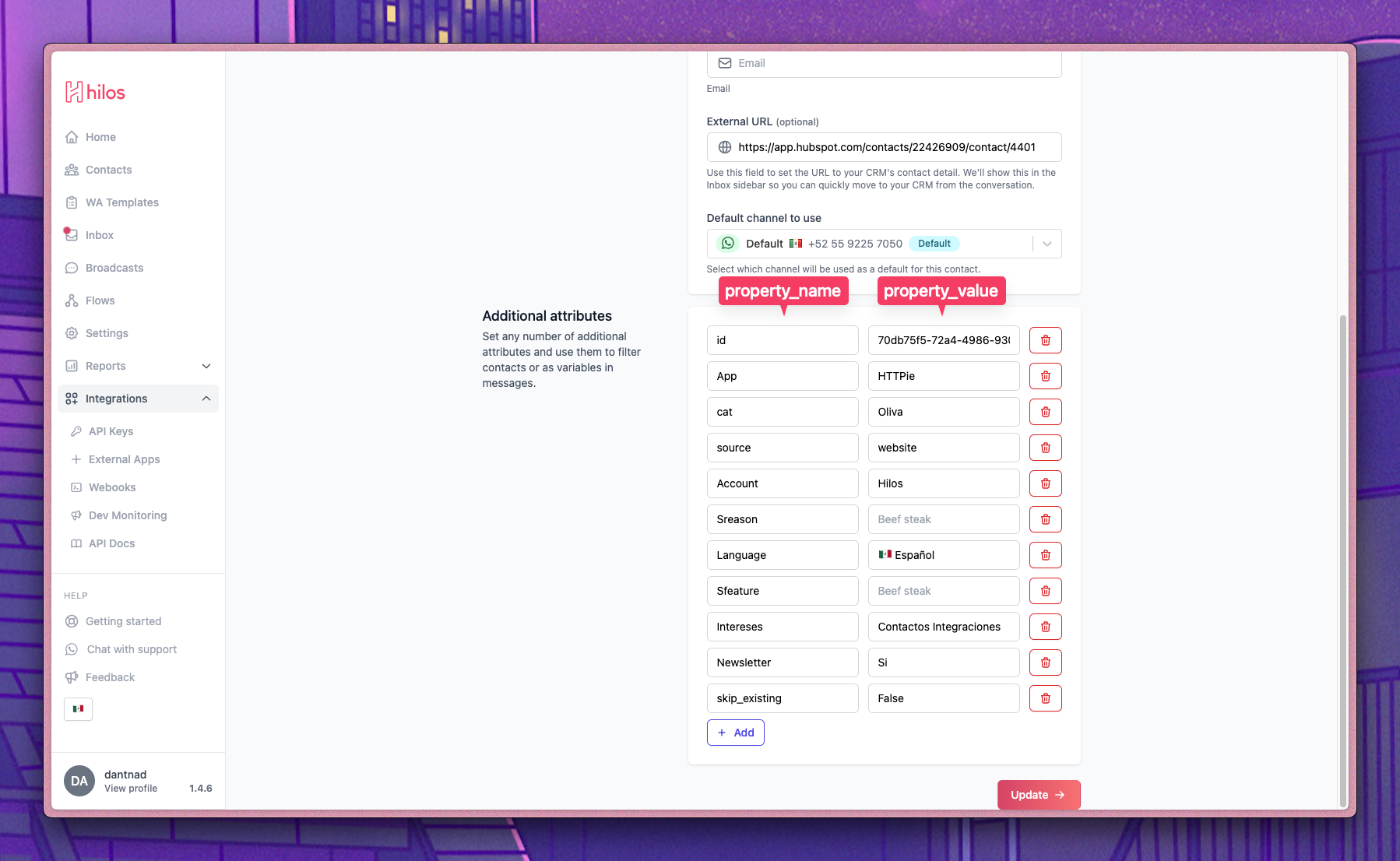
To update a contact on Hilos, select the **Update Contact in Hilos** action. You'll be prompted to fill the contact properties you want to update, take into account that Hilos uses the phone number as the unique identifier for contacts, so fill the number to update the correct contact and fill the rest of the properties you want to update, you can update one of the native properties (`first_name`, `last_name`, `email`, `external_url`, `source`) or a custom property by filling any of the `property_name` and `property_value` fields which correspond to the Additional Attibutes on the Hilos' contact card:
## Trigger an outbound flow
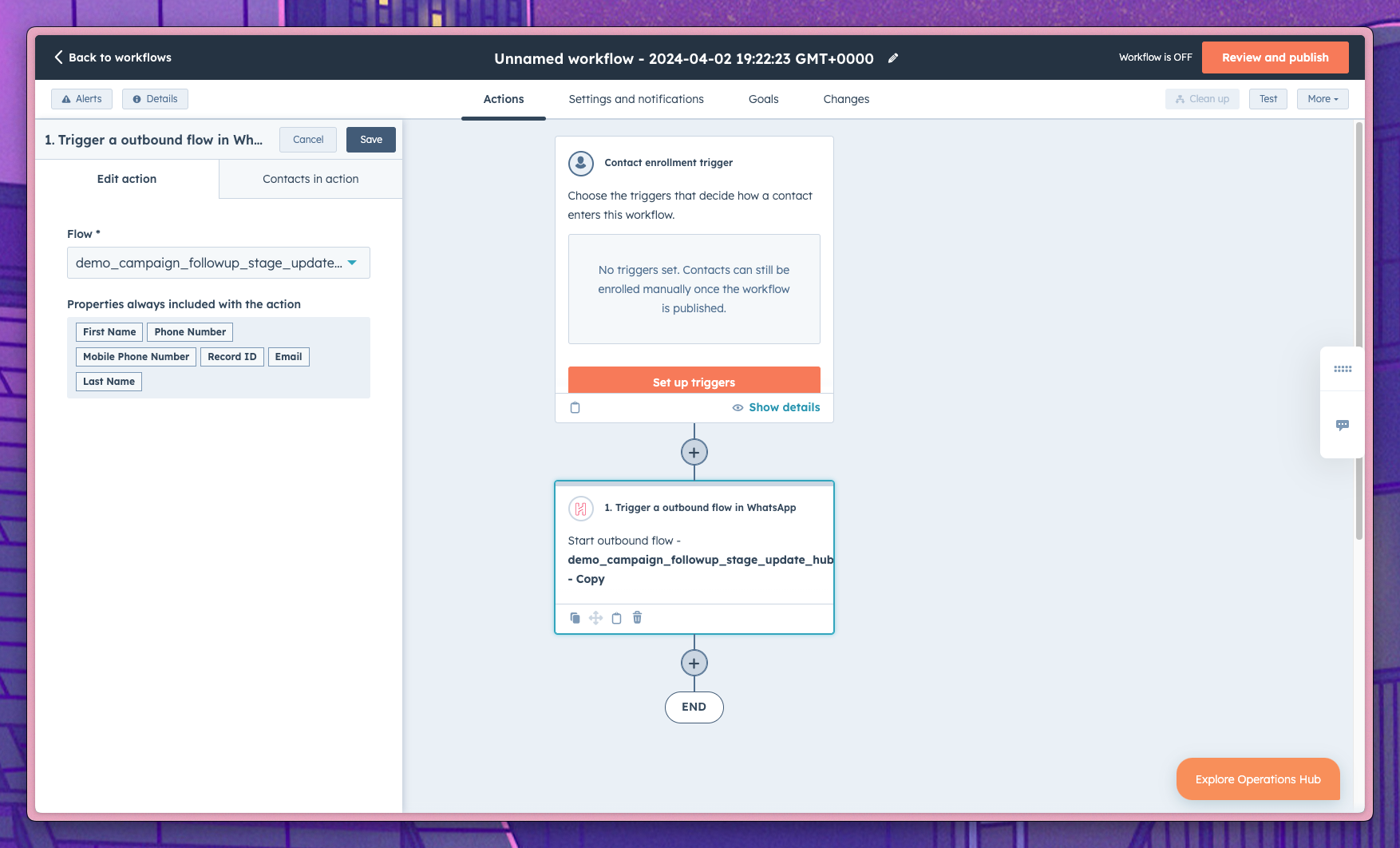
To trigger an outbound flow, select the **Trigger a Outbound Flow in WhatsApp** action. You'll be prompted to fill the flow properties including the flow name to be triggered and the properties to be passed to the flow.
### Custom properties
To create custom properties on Hilos you must first create them manually on a contact. To do so go to update a contact and fill the `property_name` and `property_value` fields with the desired custom property name and value, then click on the **Update** button. After that, you'll be able to use the custom property on the workflows.