> ## Documentation Index
> Fetch the complete documentation index at: https://hilos-40.mintlify.site/llms.txt
> Use this file to discover all available pages before exploring further.
# Activating notifications on Windows
In order to receive notification from apps you must first activate them in your system settings, here is how to do it:
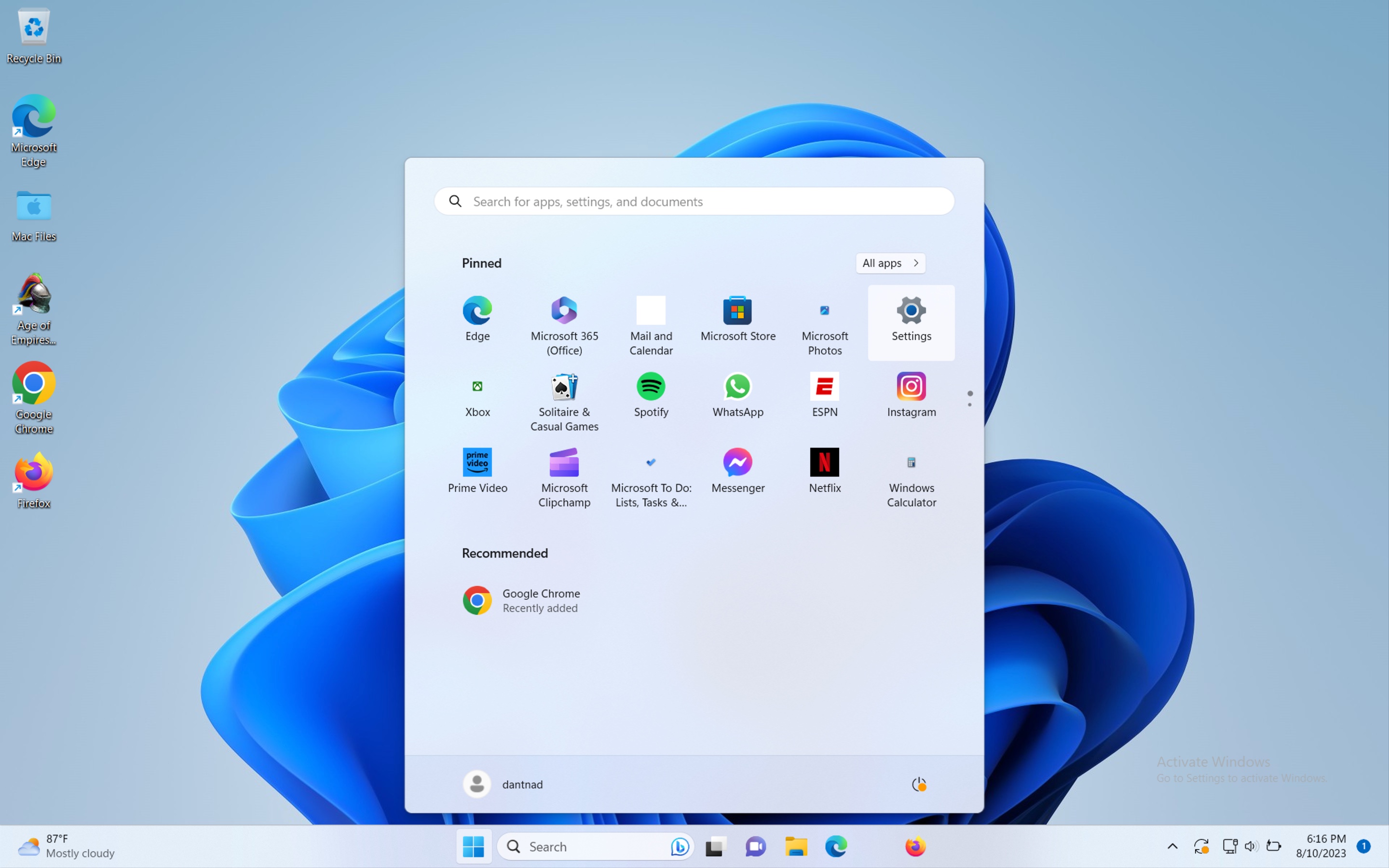
1. Open the start menu and click on the settings icon
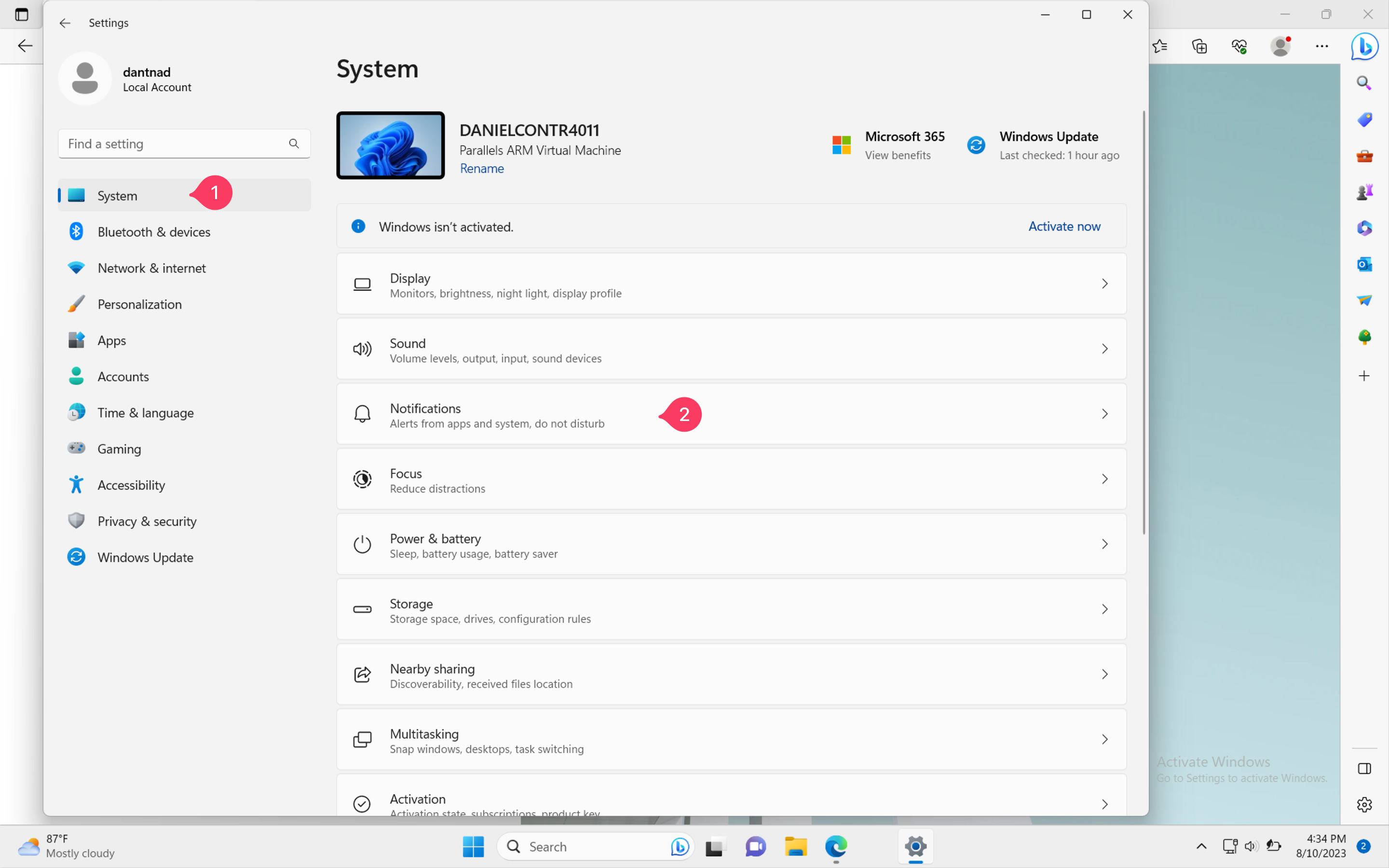
 2. Click on `System` on the sidebar then on Notifications
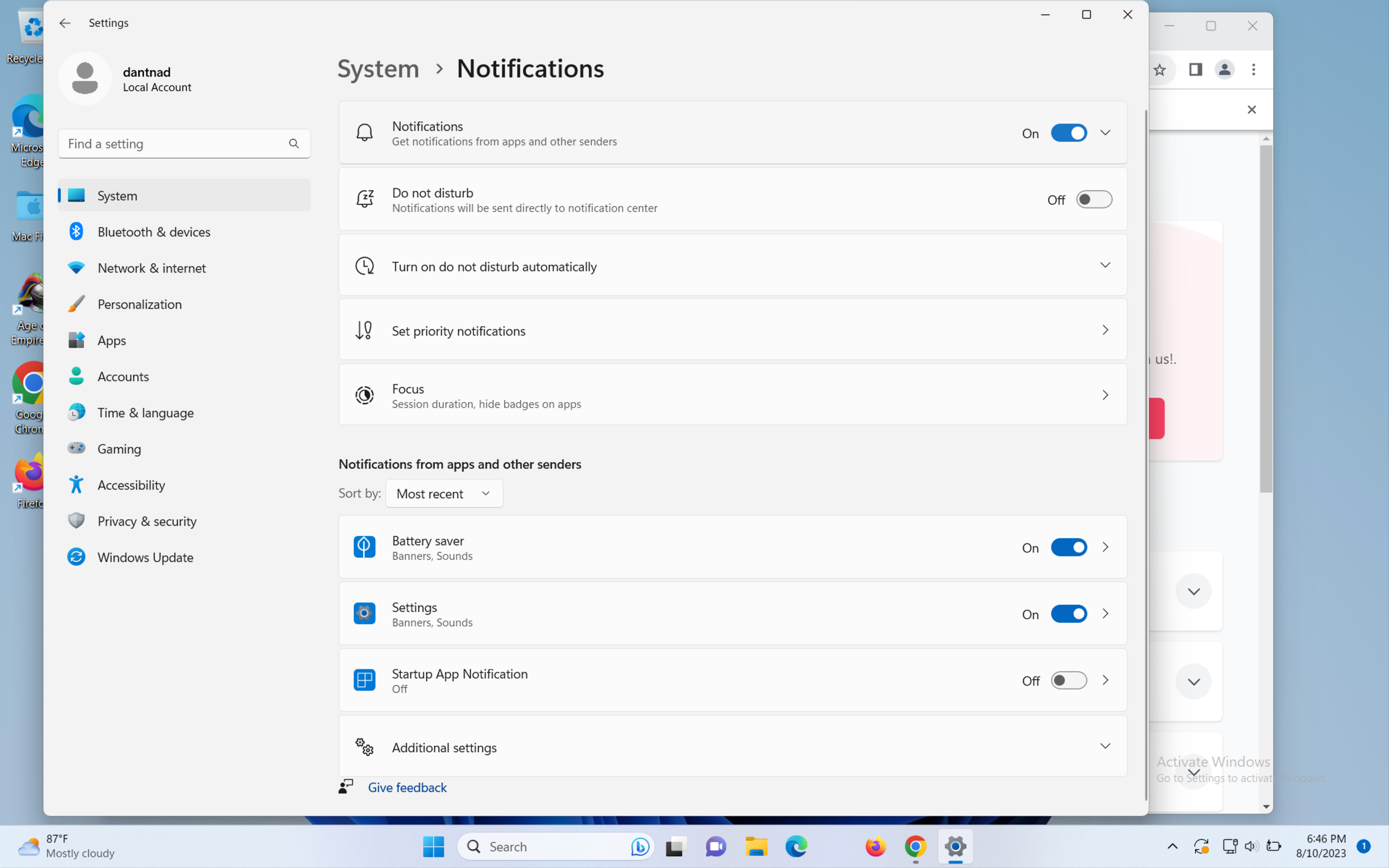
 3. Turn on notifications on the top of the page
 # Activating notifications on your browser
## Edge
1. Navigate to [Hilos](https://app.hilos.io/) and log into your account if you haven't already
2. On right of the address bar you'll see a bell icon with a red cross on it, click on it and select `Allow for this site`
# Activating notifications on your browser
## Edge
1. Navigate to [Hilos](https://app.hilos.io/) and log into your account if you haven't already
2. On right of the address bar you'll see a bell icon with a red cross on it, click on it and select `Allow for this site`
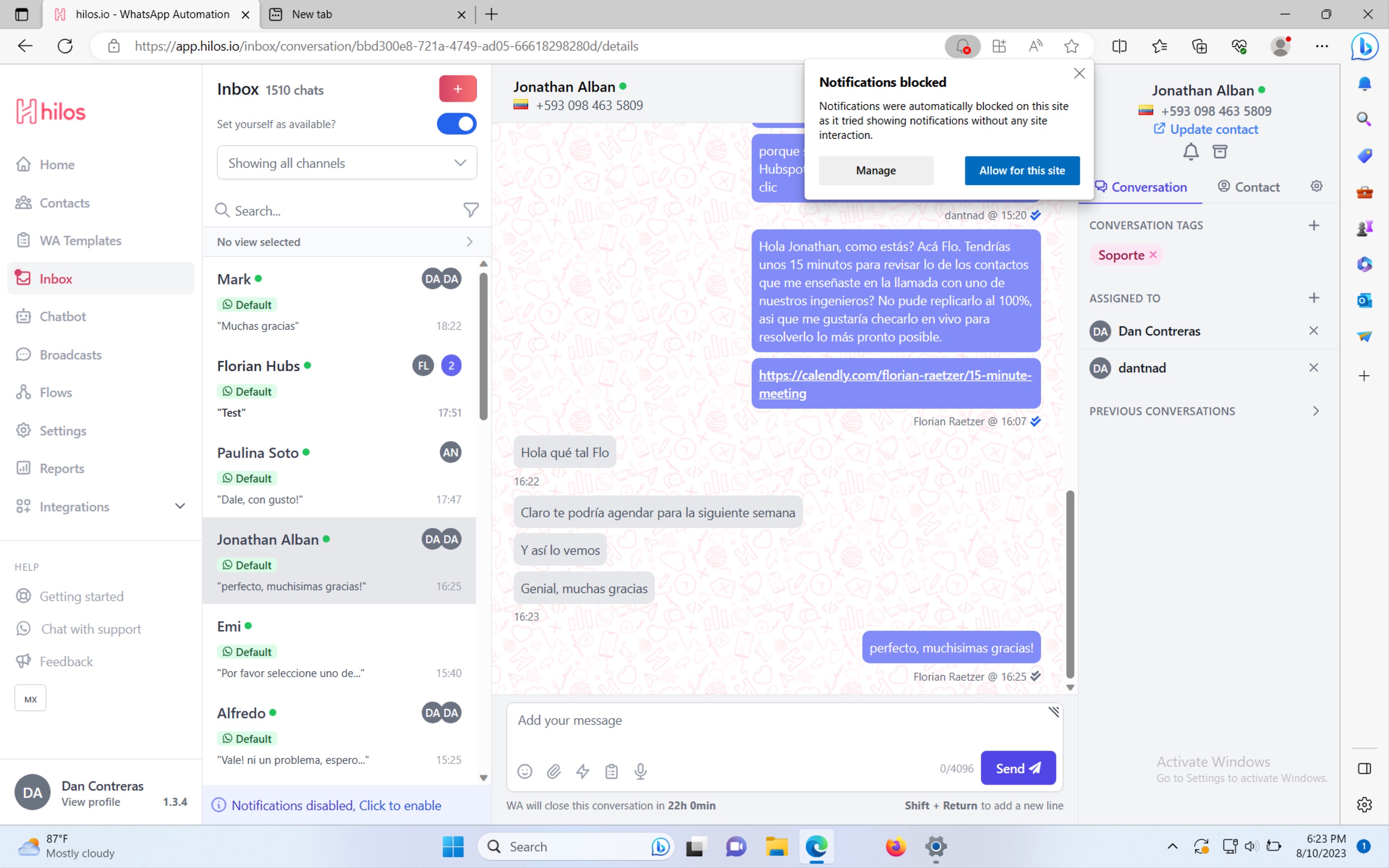 3. If you can't see the bell Icon click on the lock icon on the left of the address bar and select `Permissions for this site` and on the notifications dropdown select `Allow`
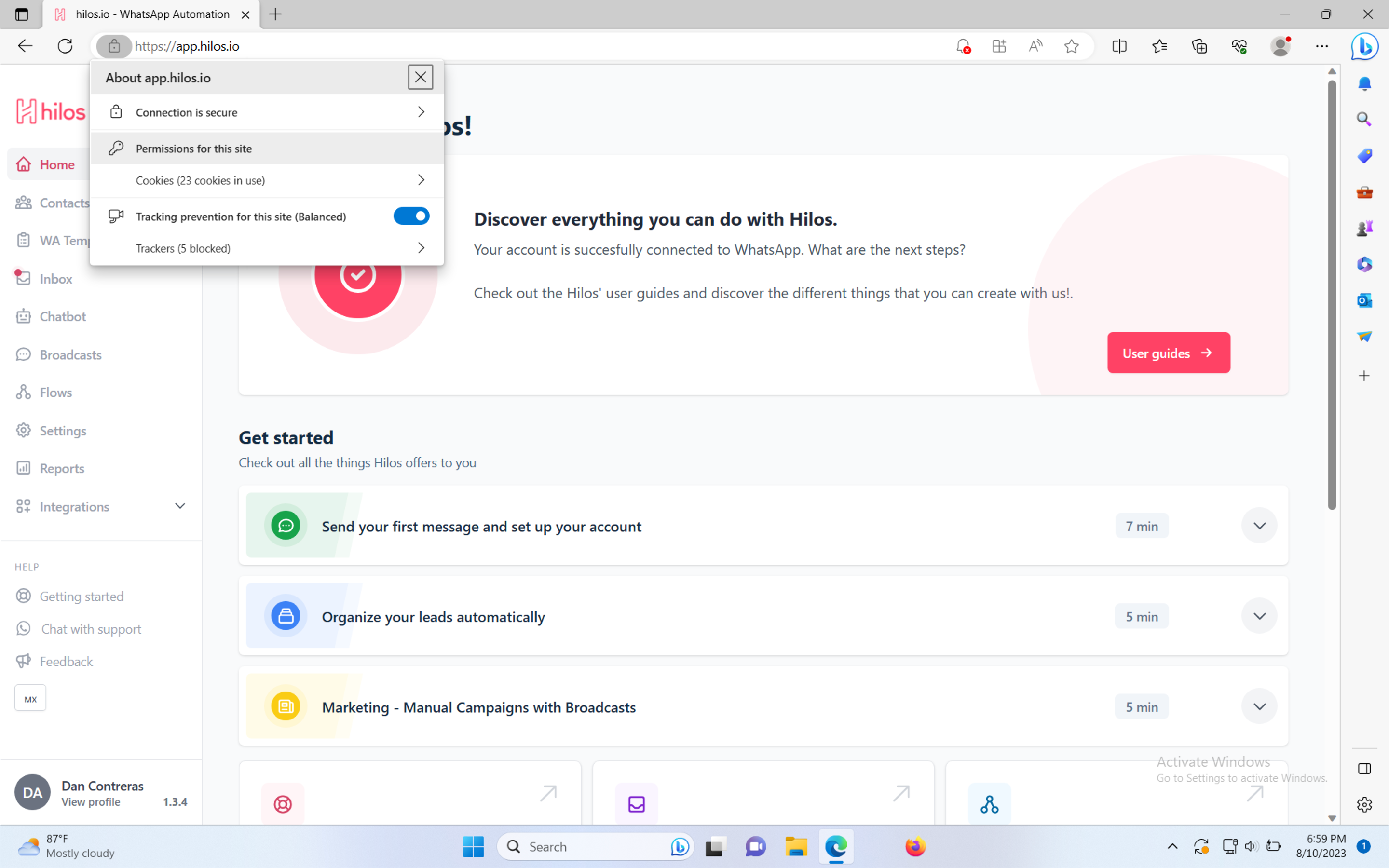 You might need to reload the page for the changes to take effect and begin receiving notifications.
## Chrome
1. Navigate to [Hilos](https://app.hilos.io/) and log into your account if you haven't already
2. Once you log into your account you will be prompted to allow notifications, click on `Allow`
You might need to reload the page for the changes to take effect and begin receiving notifications.
## Chrome
1. Navigate to [Hilos](https://app.hilos.io/) and log into your account if you haven't already
2. Once you log into your account you will be prompted to allow notifications, click on `Allow`
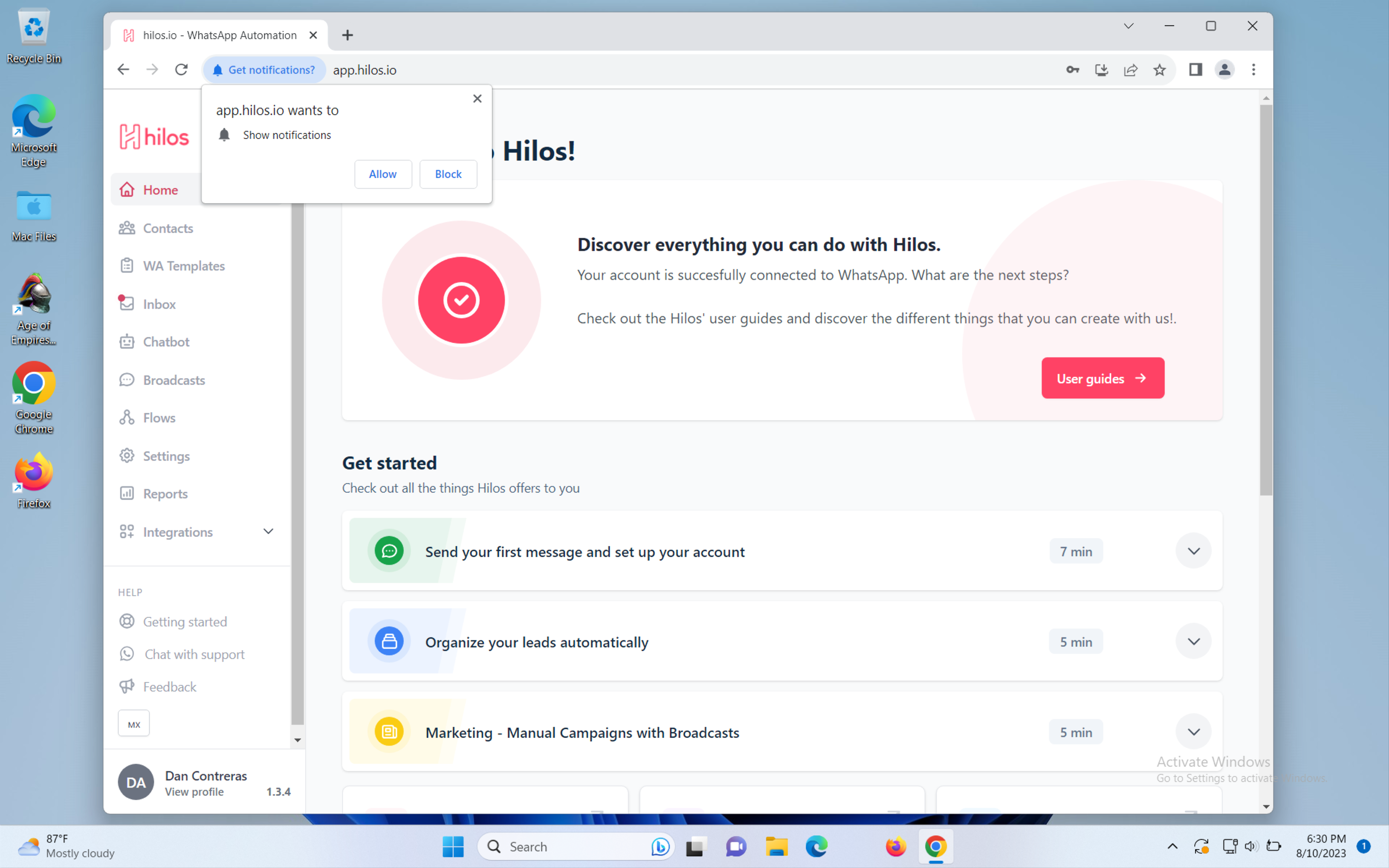 3. If you aren't prompted to allow notifications click on the lock icon on the left of the address bar and toggle the notification switch to enable notifications
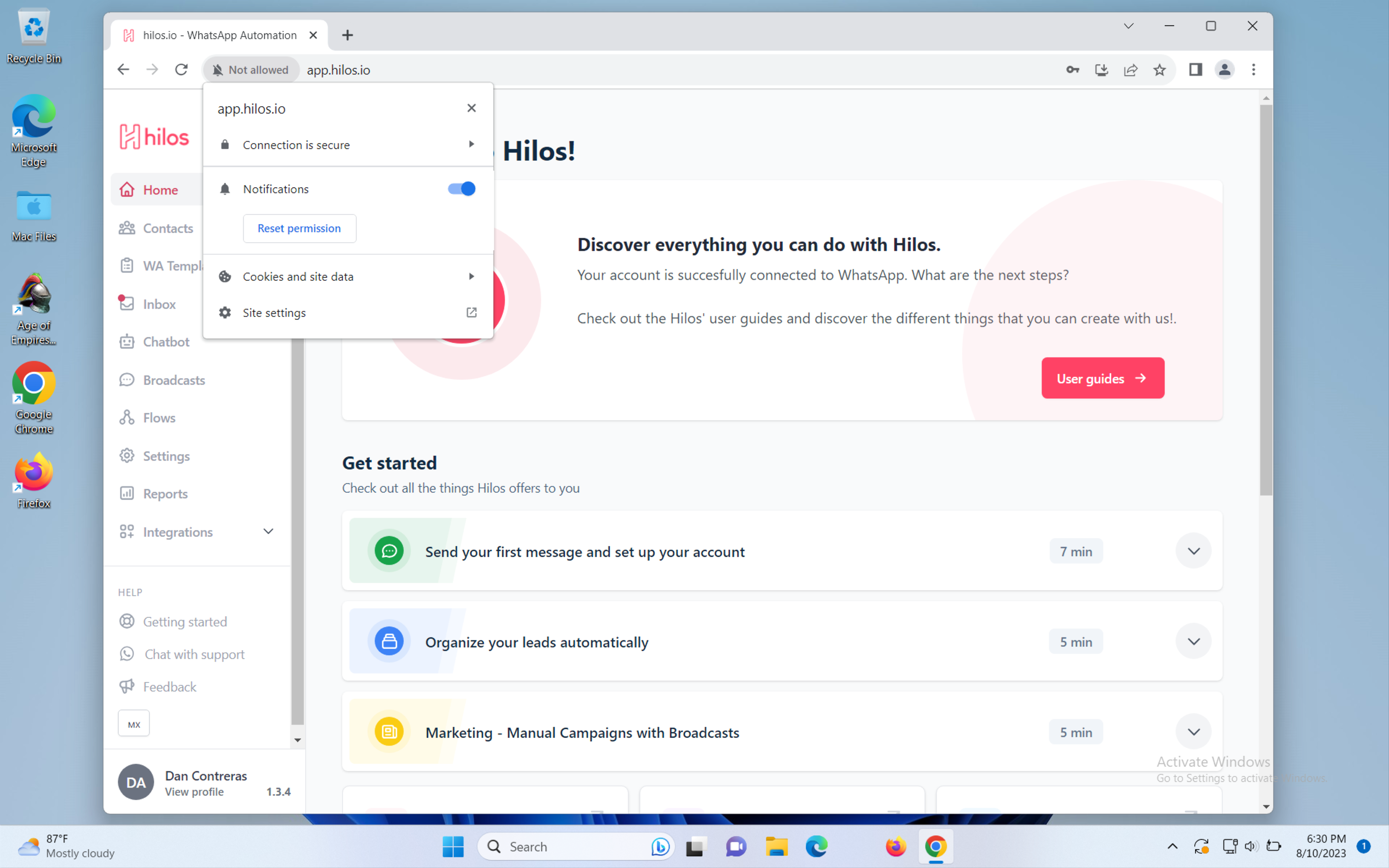 You might need to reload the page for the changes to take effect and begin receiving notifications.
## Firefox
1. Navigate to [Hilos](https://app.hilos.io/) and log into your account if you haven't already
2. Once you log into your account you will be prompted to allow notifications, click on `Allow`
You might need to reload the page for the changes to take effect and begin receiving notifications.
## Firefox
1. Navigate to [Hilos](https://app.hilos.io/) and log into your account if you haven't already
2. Once you log into your account you will be prompted to allow notifications, click on `Allow`
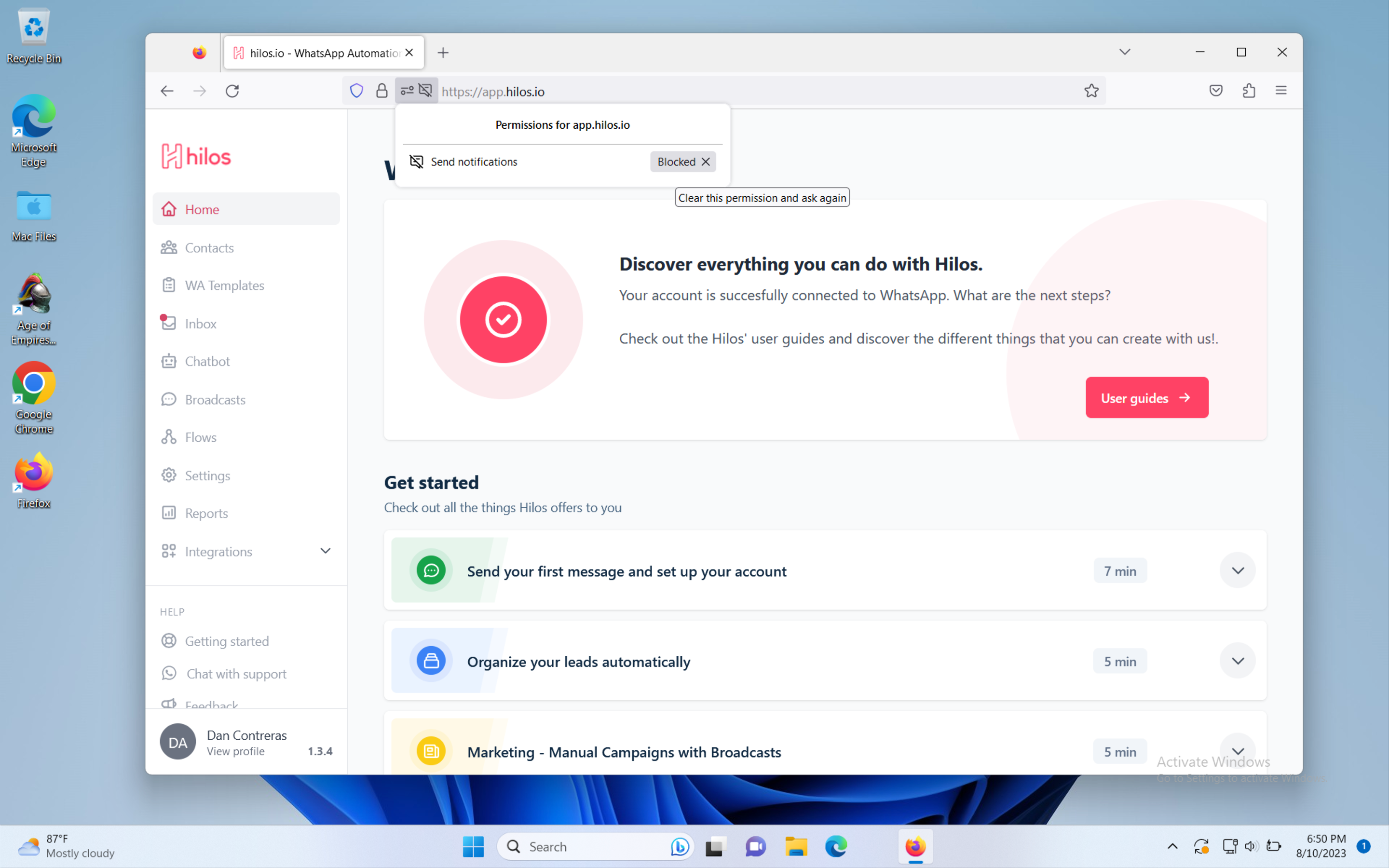
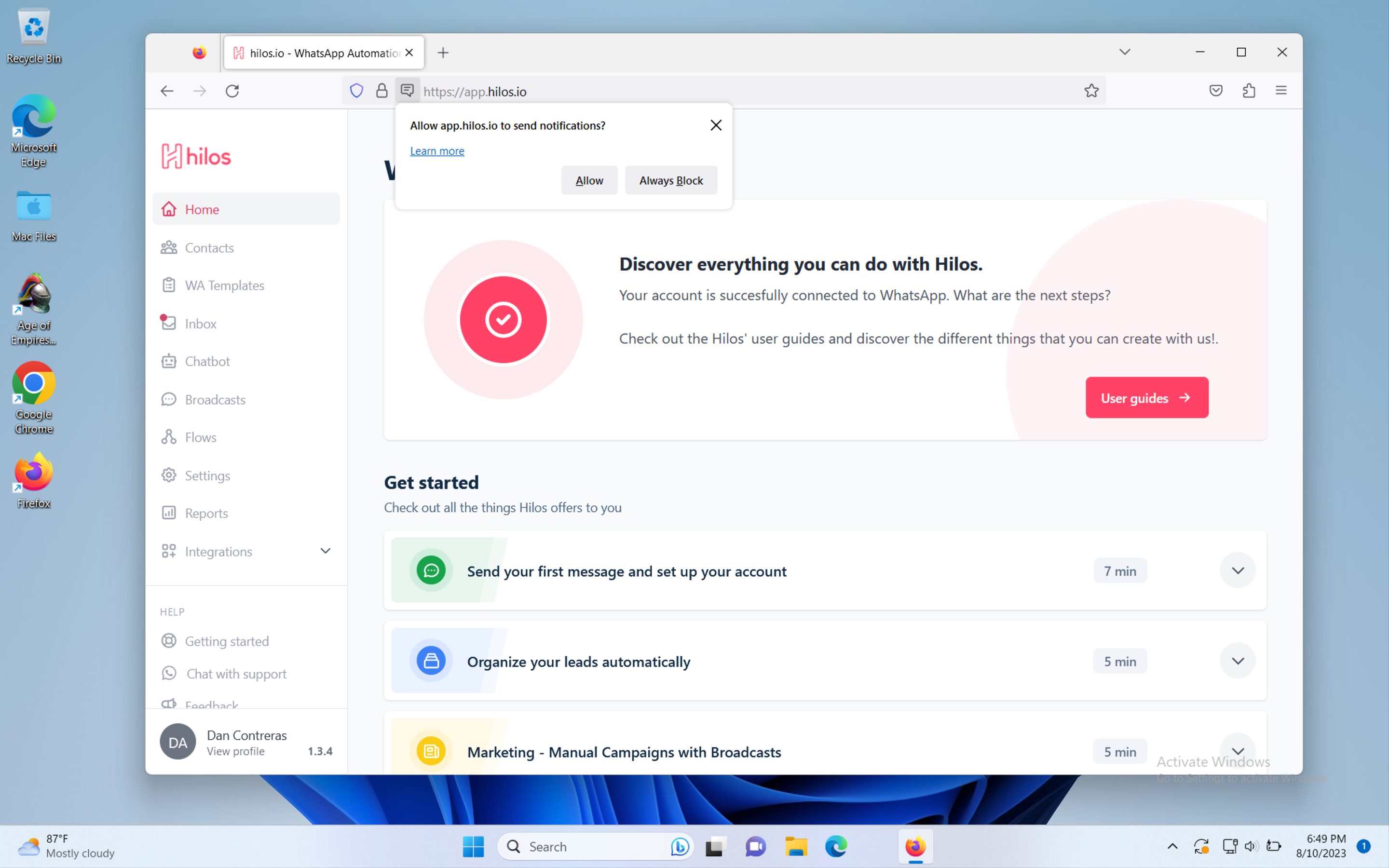 3. If you are not prompted to allow notifications chances are you have already denied them. In this case you must follow the following steps:
* Click on the settings icon next to the address bar.
* You'll see the permission for notifications set to Blocked. Click on the X next to it.
* Reload the page and you will be prompted to allow notifications. Click on Allow. If you are not prompted to do so try navigating away from the inbox and back to it.
3. If you are not prompted to allow notifications chances are you have already denied them. In this case you must follow the following steps:
* Click on the settings icon next to the address bar.
* You'll see the permission for notifications set to Blocked. Click on the X next to it.
* Reload the page and you will be prompted to allow notifications. Click on Allow. If you are not prompted to do so try navigating away from the inbox and back to it.
 You might need to reload the page for the changes to take effect and begin receiving notifications.