> ## Documentation Index
> Fetch the complete documentation index at: https://hilos-40.mintlify.site/llms.txt
> Use this file to discover all available pages before exploring further.
# Meta Business verification
Facebook Business Verification is an optional process that is necessary if you want to increase the outbound conversations limits within the WhatsApp Business API. If not completed, you may only have up to 250 conversations per day, and you may not apply for the verification badge on your WhatsApp profile.  To complete the verification process, you will need the following:
* A domain name that you own and a website which contains your legal name (corporate entity), as well as your commercial name (name you want to use on WhatsApp).
* An email address with that domain name.
* A document that validates the legal name which can be either:
* Certificate of incorporation or formation
* Business license
* Tax or VAT registration certificate
* Address and phone number verification which could be done with:
* Utility bill
* Bank statement
* Business license
The phone number used to make the Business Verification doesn't have to be the
same as your WhatsApp Business phone number, but it must be a phone number
that you own.
## Steps to complete Facebook Business Verification
1. Go to the [Facebook Business Verification page](https://business.facebook.com/settings/info) and click **View details**
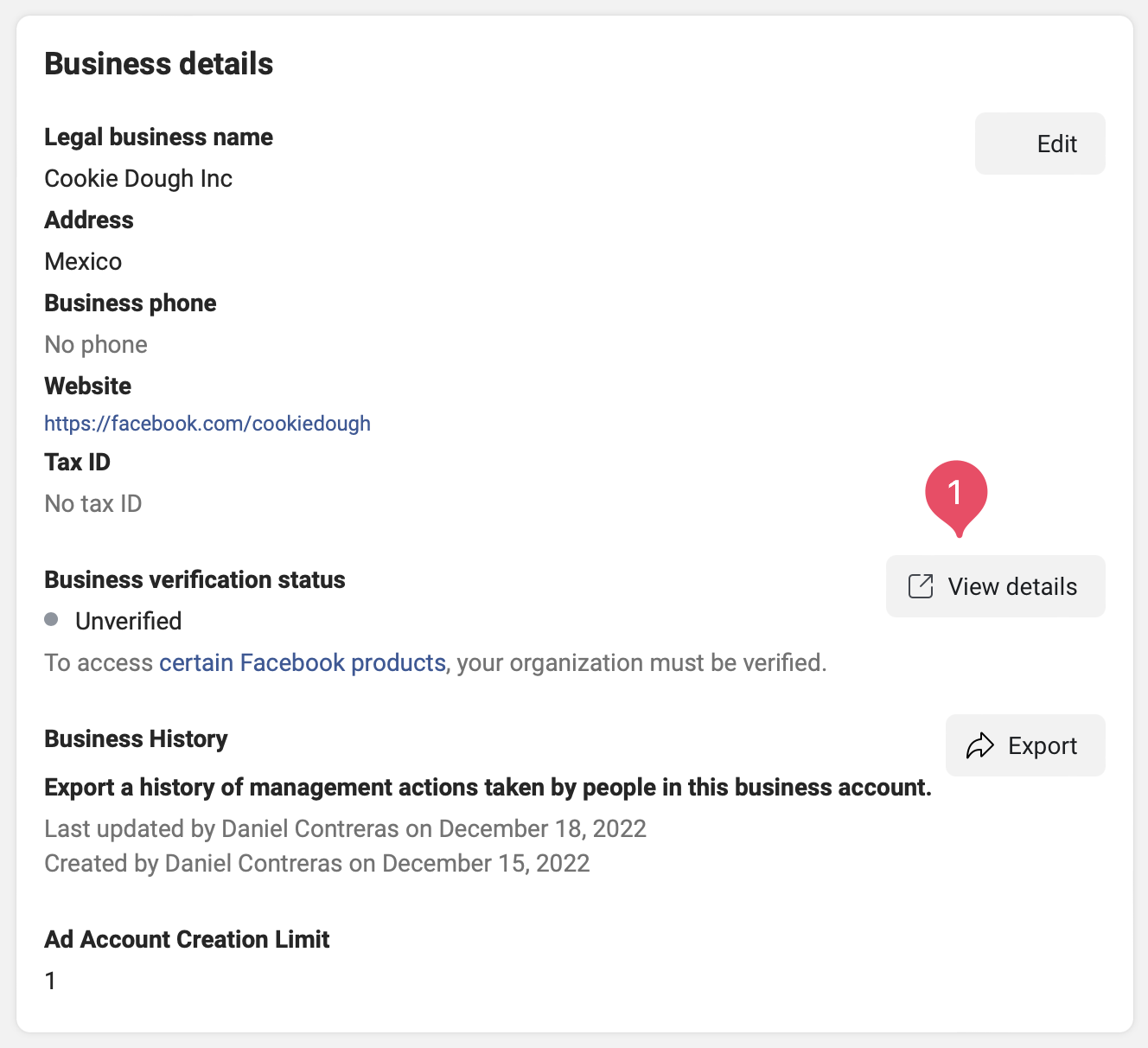
*Click on view details under the business settings*
Info: if it does not appear, it is because you are not connected to the WhatsApp API. Please [get connected](/docs/user/getting-started/connect-a-new-number) for this option to appear.
2. Then click on **Start verification** to begin the process.
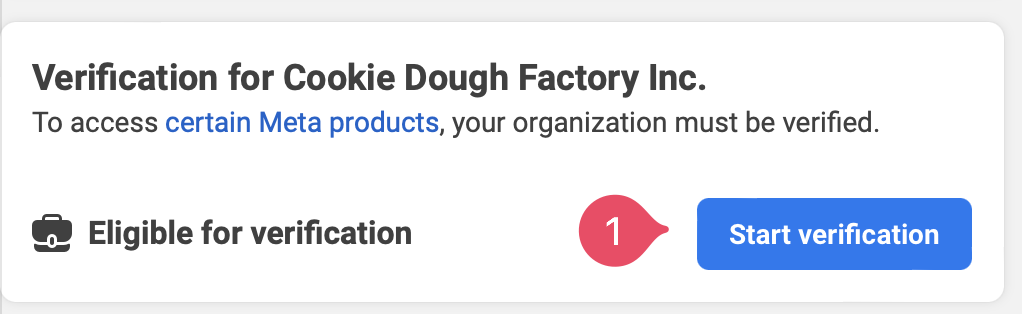
*Facebook Business Verification start*
3. On the window that appears click on **Get started**
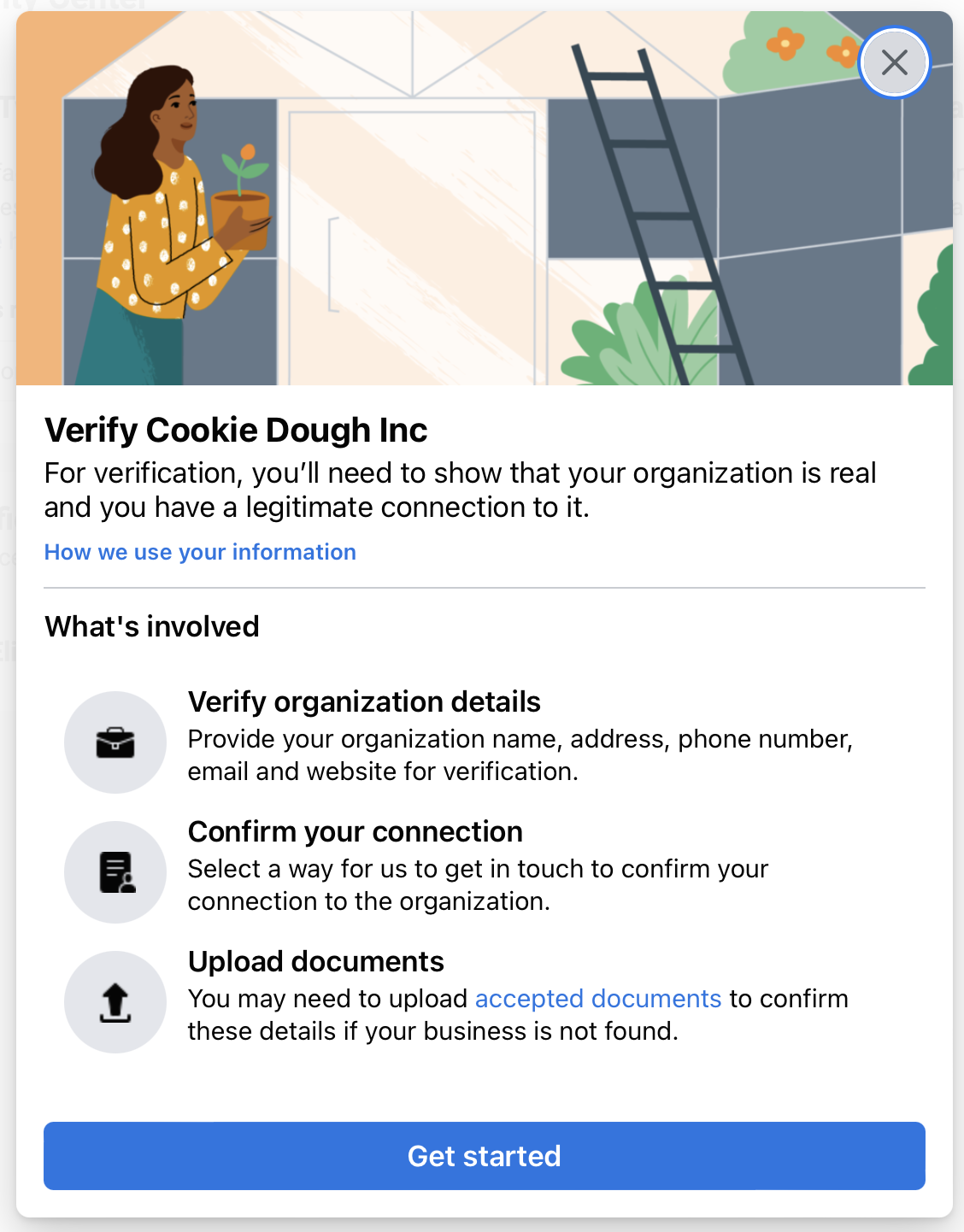
*Facebook Business Verification start*
3. Follow the instructions to enter your business details, including your business name, address, phone number and website. Then click Next.
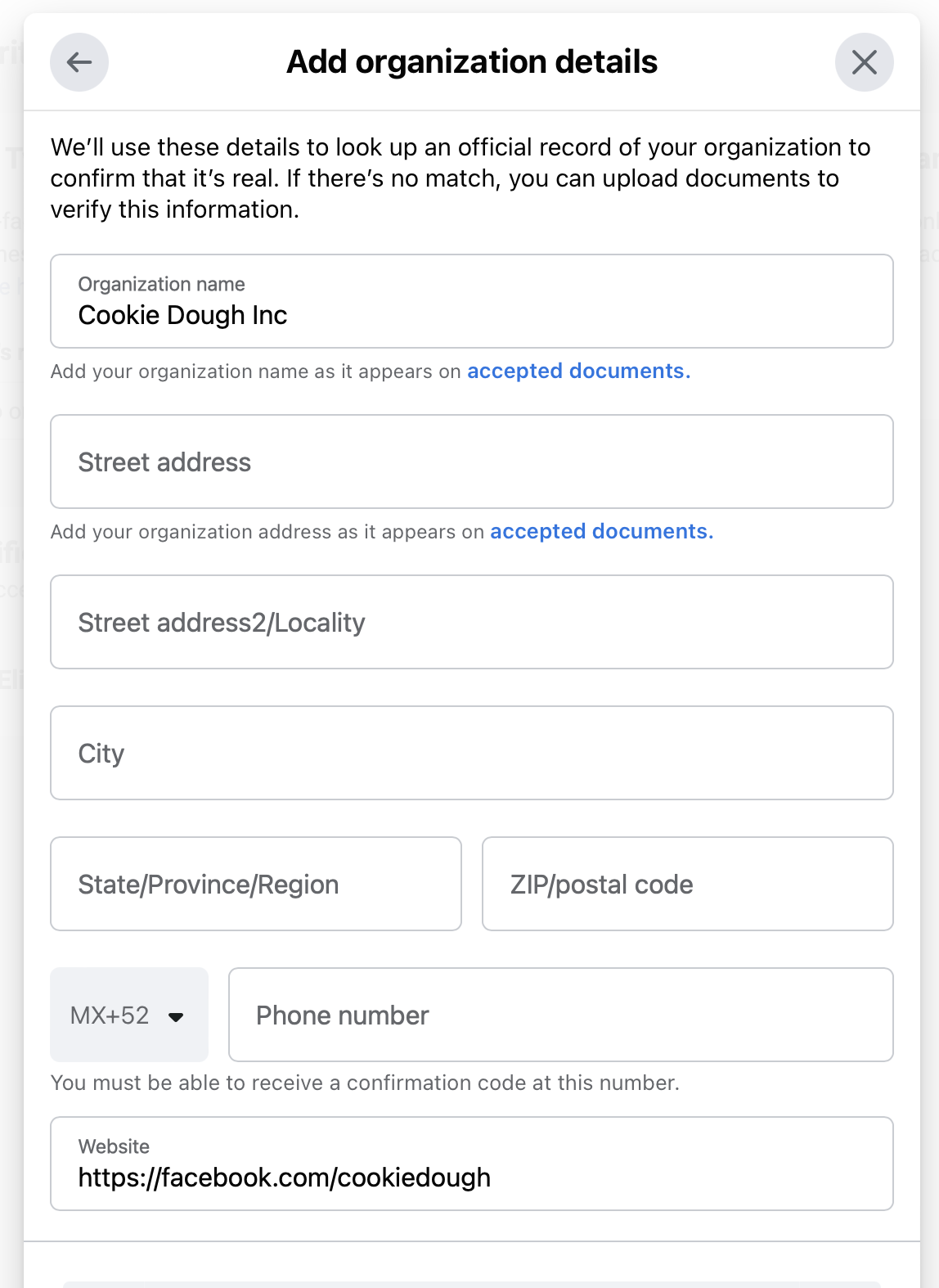
*Facebook Business Verification form*
3. Choose your desired verification method which could be either:
* Email Address (Recommended)
* Phone call
* SMS
* Domain verification
then click Next.
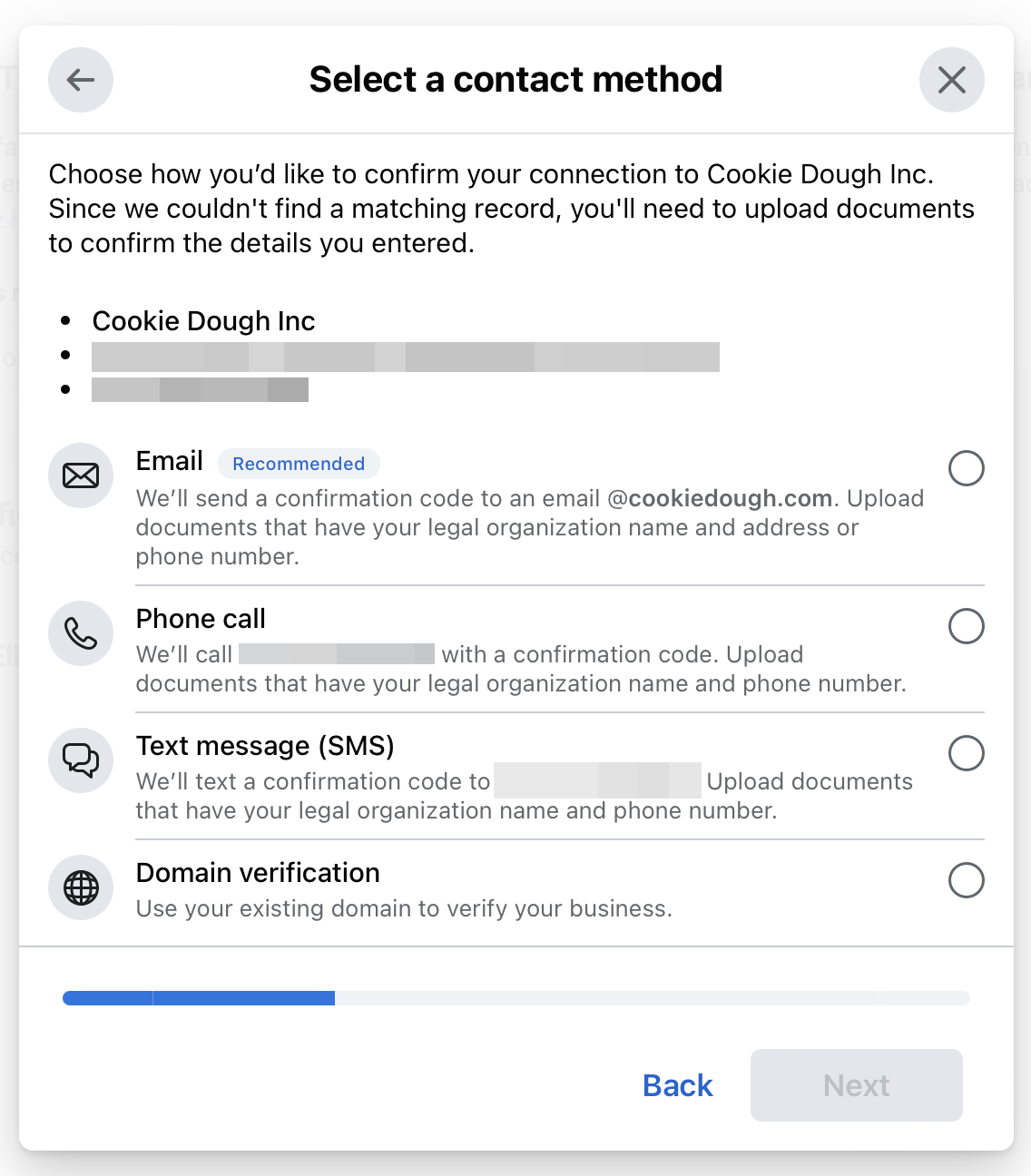
*Facebook Business Verification options*
4. Upload the document that validates your legal name and the document which validates your address or phone number. Then click Next.
Make sure the document you provided matches EXACTLY what is on the document,
FB is very strict about this.
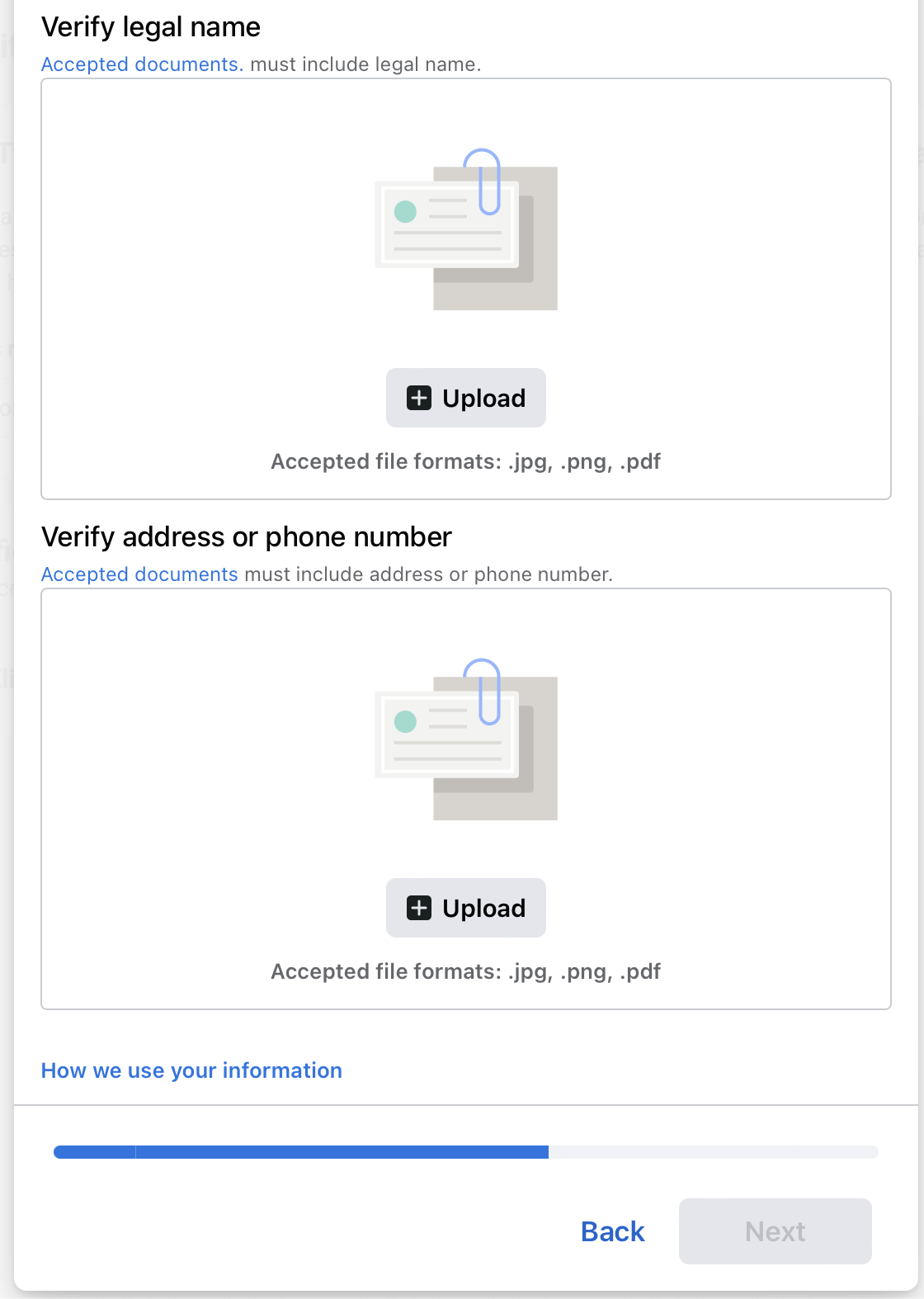
*Facebook Business Document verification*
5. Enter your email address or phone number to receive the verification code.
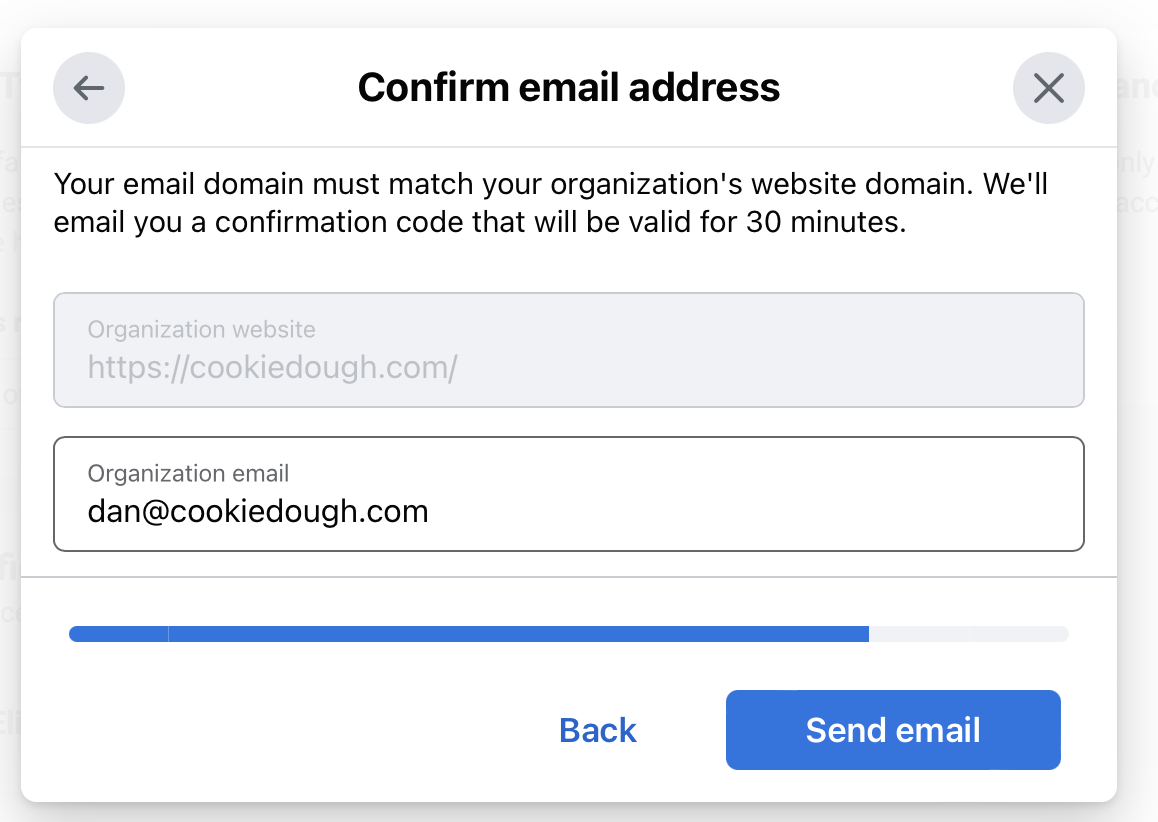
*Facebook Business Verification step*
6. Enter the verification code received to complete the validation.
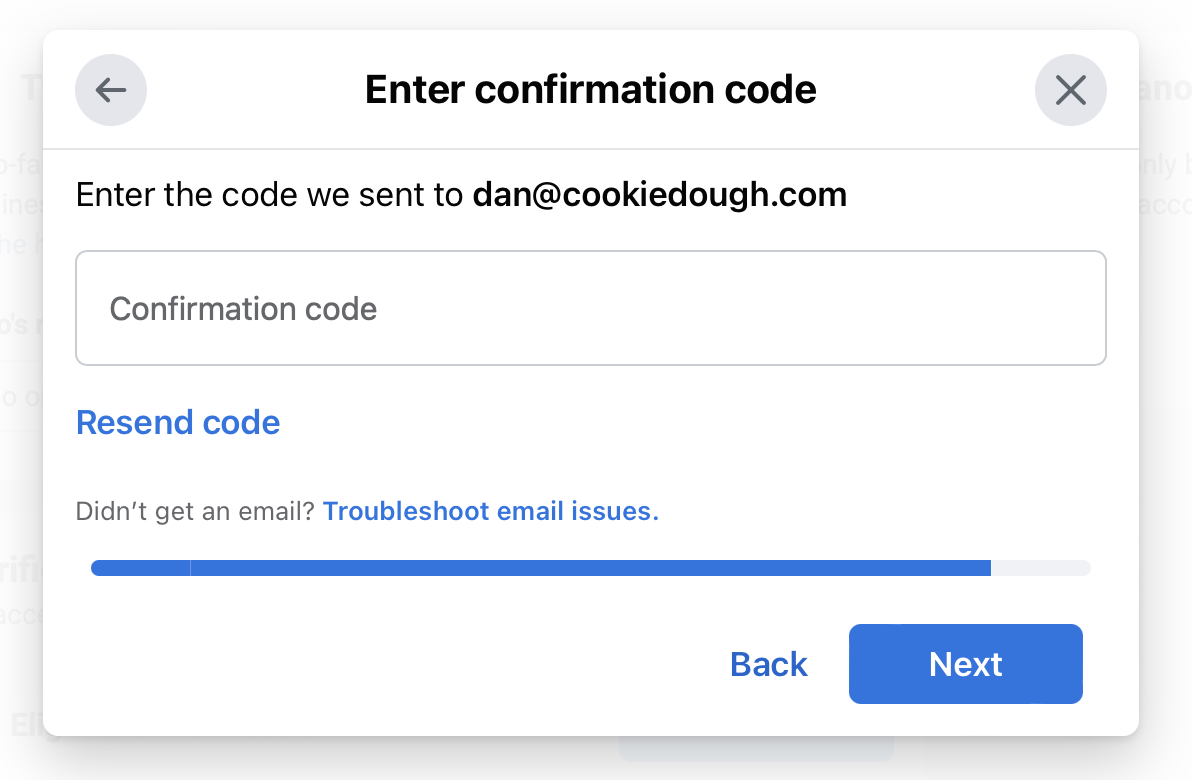
*Facebook Business Verification code form*
Nicely done! Your documents have been submitted for review. The validation process may take a couple of hours to a maximum of 5 business days. If the verification gets rejected, you'll get an email with the notification and the reason. You can try again by correcting the errors or submitting additional documents.
Completing the Facebook Business Verification process is important if you want to increase your messaging limits within the WhatsApp Business API and apply for the verification "green tick" on your WhatsApp profile and ensuring that your business is verified and ready to use the full capabilities of the WhatsApp Business API.
To complete the verification process, you will need the following:
* A domain name that you own and a website which contains your legal name (corporate entity), as well as your commercial name (name you want to use on WhatsApp).
* An email address with that domain name.
* A document that validates the legal name which can be either:
* Certificate of incorporation or formation
* Business license
* Tax or VAT registration certificate
* Address and phone number verification which could be done with:
* Utility bill
* Bank statement
* Business license
The phone number used to make the Business Verification doesn't have to be the
same as your WhatsApp Business phone number, but it must be a phone number
that you own.
## Steps to complete Facebook Business Verification
1. Go to the [Facebook Business Verification page](https://business.facebook.com/settings/info) and click **View details**

*Click on view details under the business settings*
Info: if it does not appear, it is because you are not connected to the WhatsApp API. Please [get connected](/docs/user/getting-started/connect-a-new-number) for this option to appear.
2. Then click on **Start verification** to begin the process.

*Facebook Business Verification start*
3. On the window that appears click on **Get started**

*Facebook Business Verification start*
3. Follow the instructions to enter your business details, including your business name, address, phone number and website. Then click Next.

*Facebook Business Verification form*
3. Choose your desired verification method which could be either:
* Email Address (Recommended)
* Phone call
* SMS
* Domain verification
then click Next.

*Facebook Business Verification options*
4. Upload the document that validates your legal name and the document which validates your address or phone number. Then click Next.
Make sure the document you provided matches EXACTLY what is on the document,
FB is very strict about this.

*Facebook Business Document verification*
5. Enter your email address or phone number to receive the verification code.

*Facebook Business Verification step*
6. Enter the verification code received to complete the validation.

*Facebook Business Verification code form*
Nicely done! Your documents have been submitted for review. The validation process may take a couple of hours to a maximum of 5 business days. If the verification gets rejected, you'll get an email with the notification and the reason. You can try again by correcting the errors or submitting additional documents.
Completing the Facebook Business Verification process is important if you want to increase your messaging limits within the WhatsApp Business API and apply for the verification "green tick" on your WhatsApp profile and ensuring that your business is verified and ready to use the full capabilities of the WhatsApp Business API.