

Hilos provides comprehensive information to understand how your users are interacting with your flows and to make necessary adjustments or optimizations. To see the details of a flow, locate it in the flow list and click on its name. This will take you to the flow details. At the bottom, you will see 2 or 3 tabs, depending on whether it’s an Inbound or Outbound flow:
  • Contacts (Inbound and Outbound)
  • Executions (Outbound only)
  • Versions (Inbound and Outbound)
In the contacts list, you can see which of your contacts have been through the flow, regardless of the version. If you want to see what that individual contact did in the flow, simply click on it. The executions list, which is only available for Outbound flows, will show each individual flow execution, be it by Zapier, API, filtering contacts, uploading a CSV, etc. These executions group the contacts to whom the flow was sent, allowing you to distinguish between, for instance, the campaign sent today vs the one sent yesterday. In the versions list, you’ll find the change history of the flow. This way, you can see how each version has performed, observing whether the response rate has improved as changes are made to the flow. Once you’ve decided whether to compare between versions or executions, click on the name to go to the details of that execution/version. Note that a single version can have many executions. Upon entering the detailed view of the execution or version, you’ll first see something like the following: General Results Here you can see the current status of each contact that went through this flow:
  • Contacts: Indicates how many contacts are in this execution or have entered the flow version.
  • Expired: Indicates how many contacts stopped responding. The default waiting time for a response from the contact in the TEMPLATE, MENU or QUESTION steps is 24 hours, but you can customize this in each step.
  • Ongoing: Indicates how many contacts are still active in the flow. This is either because we’re waiting for a response from the contact or because the flow has a DELAY step.
  • Cancelled: Indicates how many contacts left the flow because their execution was canceled. These cancellations can be manual or due to the fact the contact already had an open conversation in the Inbox. You can customize this when executing a flow.
  • Failed: Indicates how many contacts left the flow due to an error during execution. These errors can range from not being able to send a message to issues with a step, such as a failed connection with an external API.
  • Completed: Indicates how many contacts reached one of the final steps of the flow.
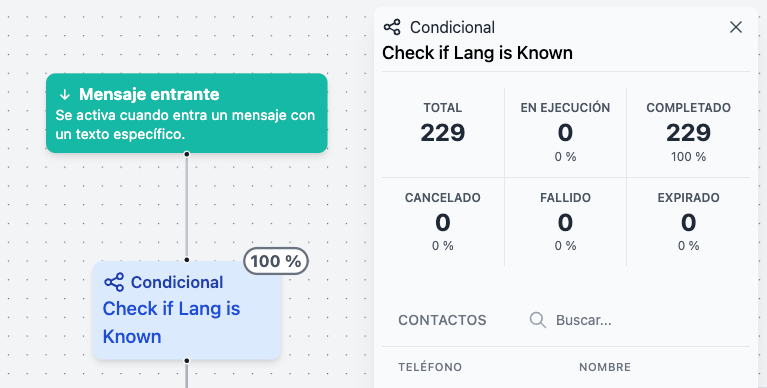
Further below, you have the Flow Viewer tab. This is a visualization of the flow version you are looking at (or the version of the execution you selected) and will color-code the most frequently executed steps, allowing you to easily identify the paths most often taken by contacts. In addition, we provide the percentage of contacts that went through each step. Note that these percentages are relative to the previous step. Flow Viewer
