
1
Select the phone number origin
There are 3 options to choose from:
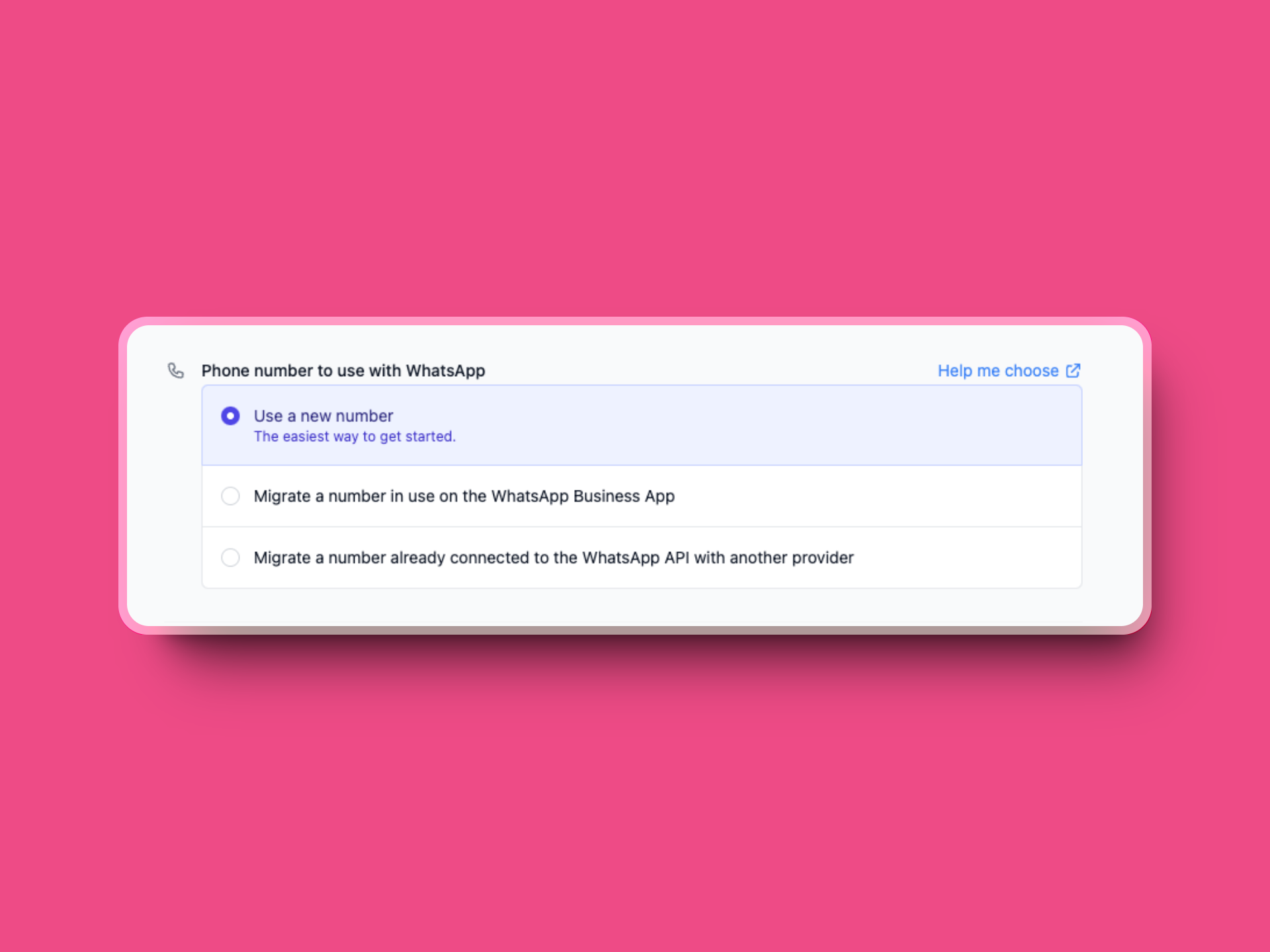
Use a new number
Use a new number
When the number you’re configuring hasn’t been used before in WhatsApp, WhatsApp Business or WhatsApp Business API. This is by far the easiest option to choose as you won’t need to do any additional steps.
Migrate a number in use on the WhatsApp Business App
Migrate a number in use on the WhatsApp Business App
When you want to migrate a number that is currently being used in the WhatsApp Business App. Bear in mind that WhatsApp Business API and WhatsApp Business App are different platforms that can’t be used simultaneously, you’ll need to delete your WhatsApp Account to continue, once you’ve done this, you’ll be able to migrate your number. To delete your WhatsApp Account follow this guide, once you’ve deleted your account wait 5 minutes before continuing to follow this guide as Facebook takes a while to update their systems.
Migrate from another BSP
Migrate from another BSP
When you want to migrate a number that is currently being used in another Business Solution Provider (BSP) to Hilos. You’ll need to have the necessary permissions to do this and ask your current BSP to disable 2FA (Two-Factor Authentication) to continue.
Also, before finishing the onboarding process you’ll need to keep the onboarding window open until you’ve finished adding a payment method to your WhatsApp account.
How to disable your number's 2FA
How to disable your number's 2FA
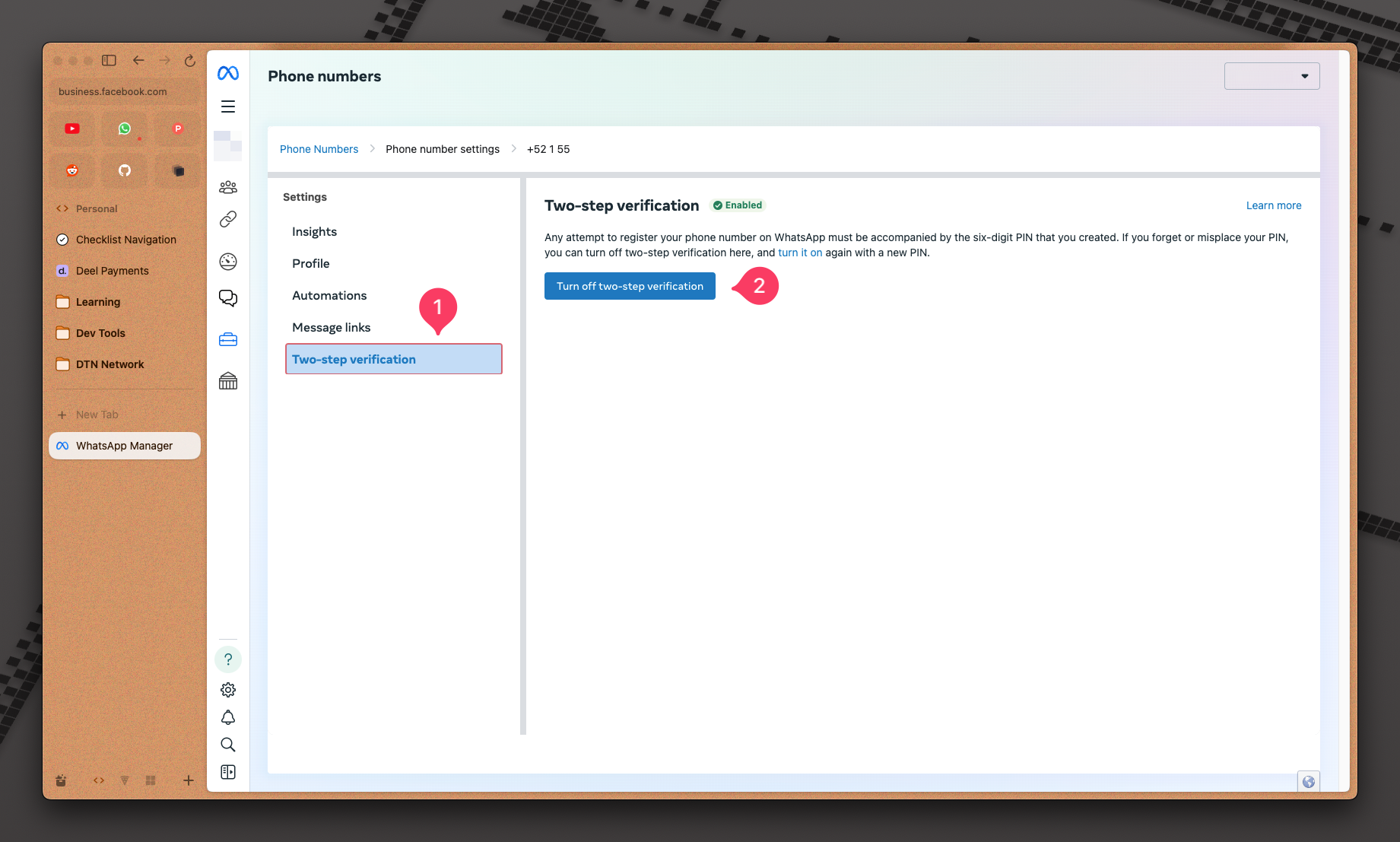
If you come from another BSP or your number was already connected to WhatsApp Business API, you’ll need to disable 2FA (Two-Factor Authentication) to continue. Depending on the BSP sometimes you’ll need to ask support to do this or you may do it yourself by going into your WhatsApp Business Manager and clicking the ⚙️ next to the phone number you’re migrating, here you’ll need to go to the Two-Factor authentication tab and clic on Disable 2FA.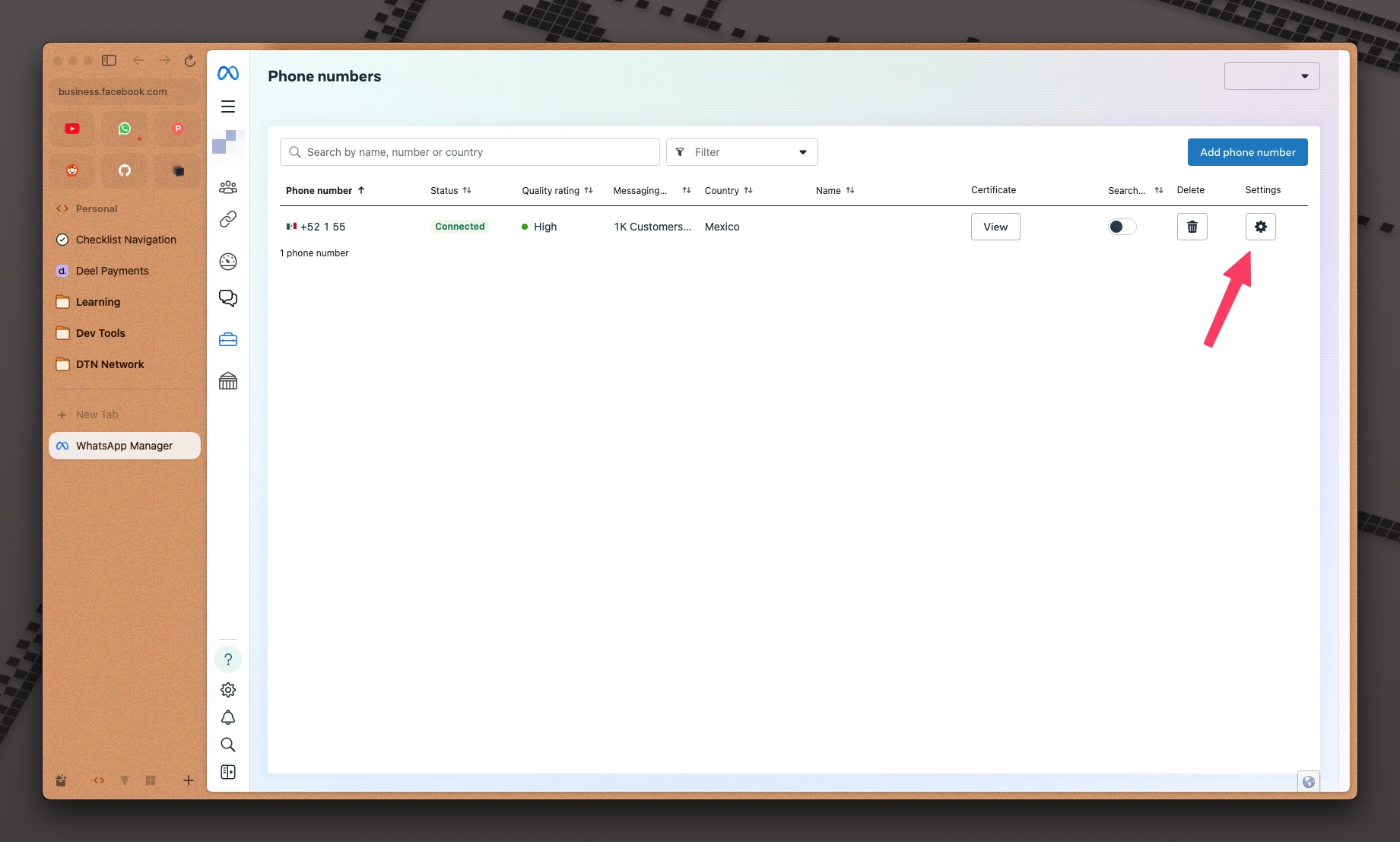
2
Confirm you own a Business Manager & website
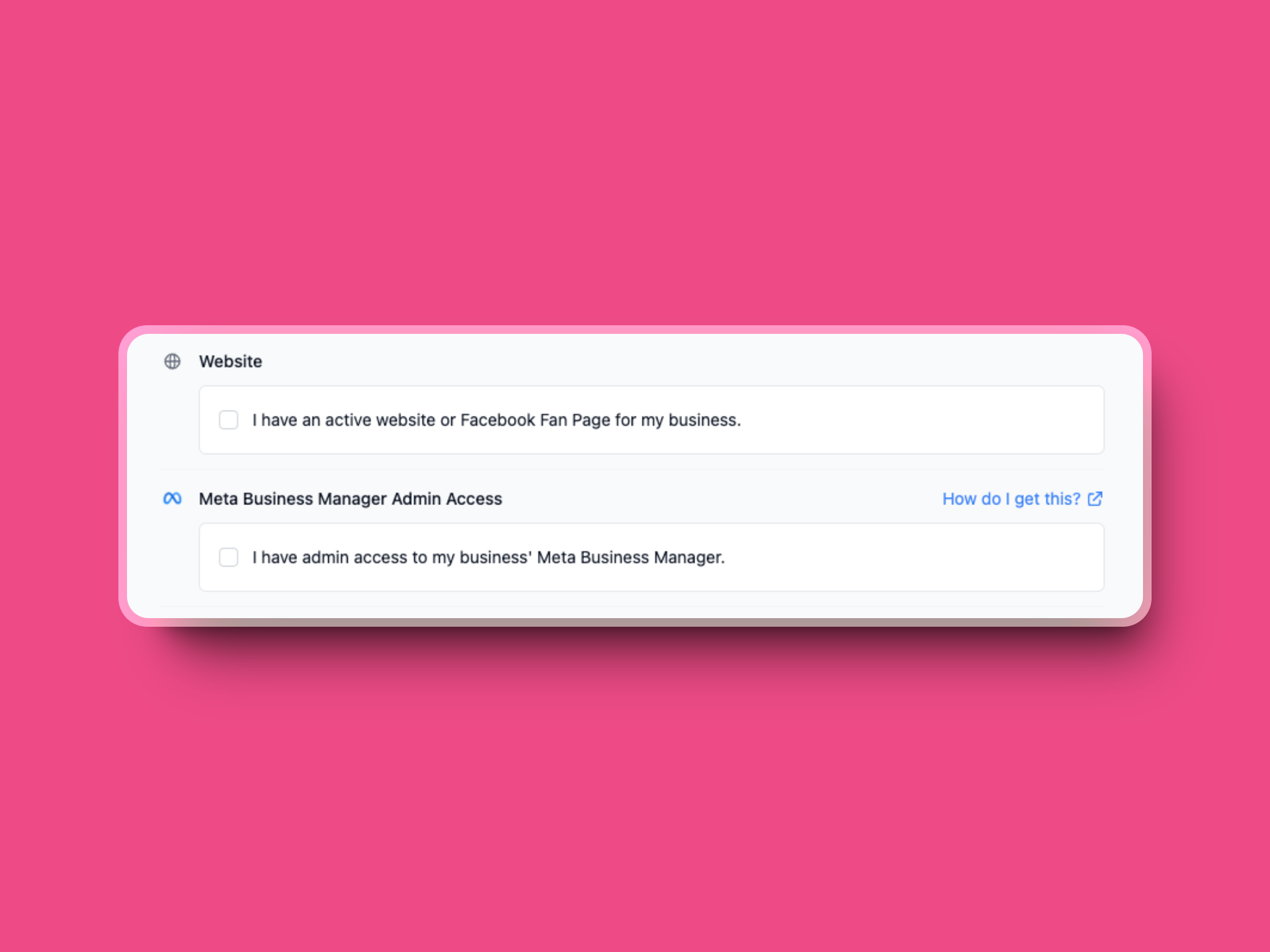
To continue, you’ll need to confirm that you own a Business Manager account and a website. If you don’t have a Business Manager account, you can create one here. Websites are needed so that Facebook can verify your business is real, if you don’t have one your number might get blocked.
3
Login with Meta
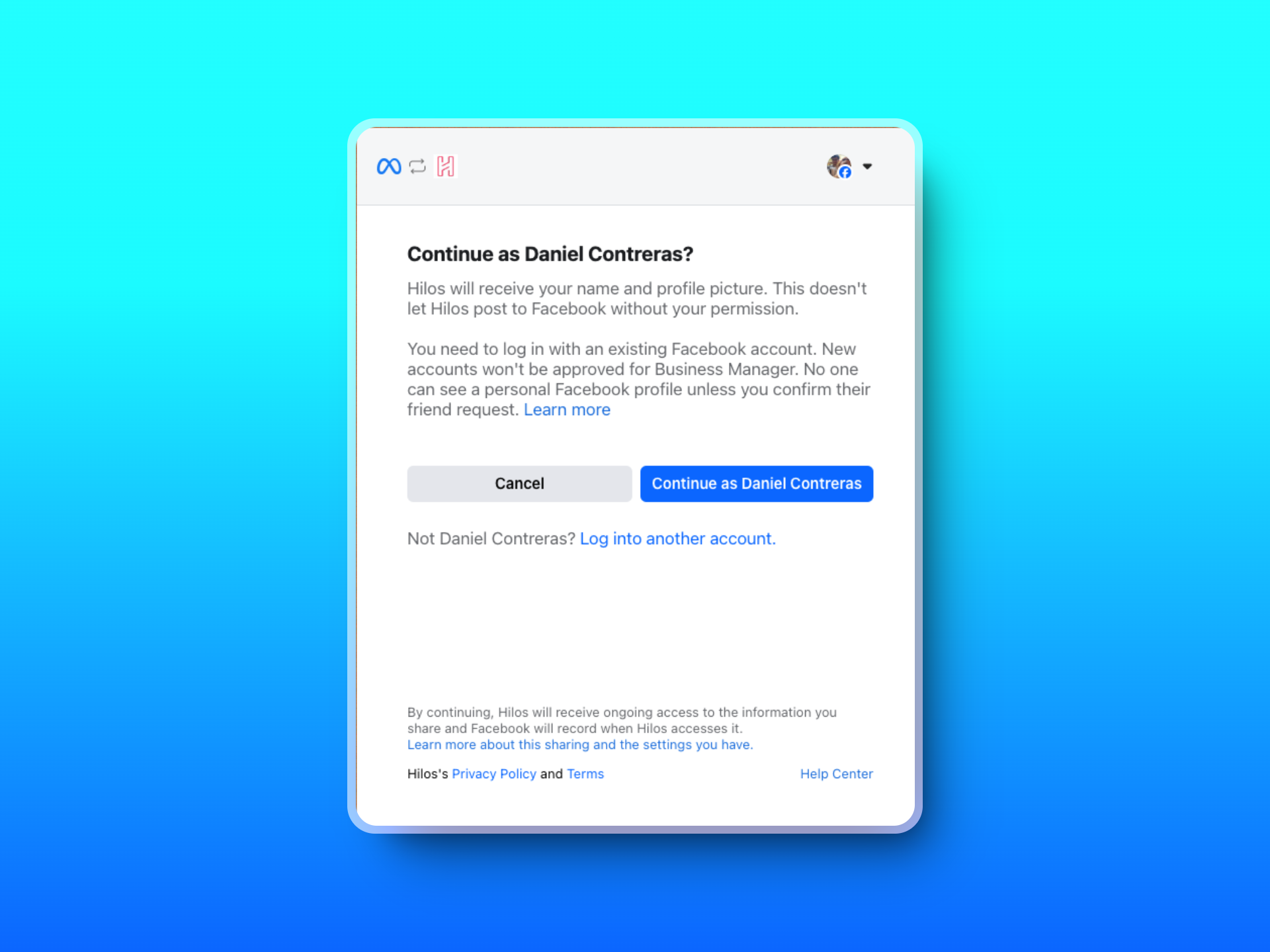
Now we’re all set, click on Login with meta to begin the onboarding process. When prompted, authorize Hilos to access your Facebook account to begin the process.
4
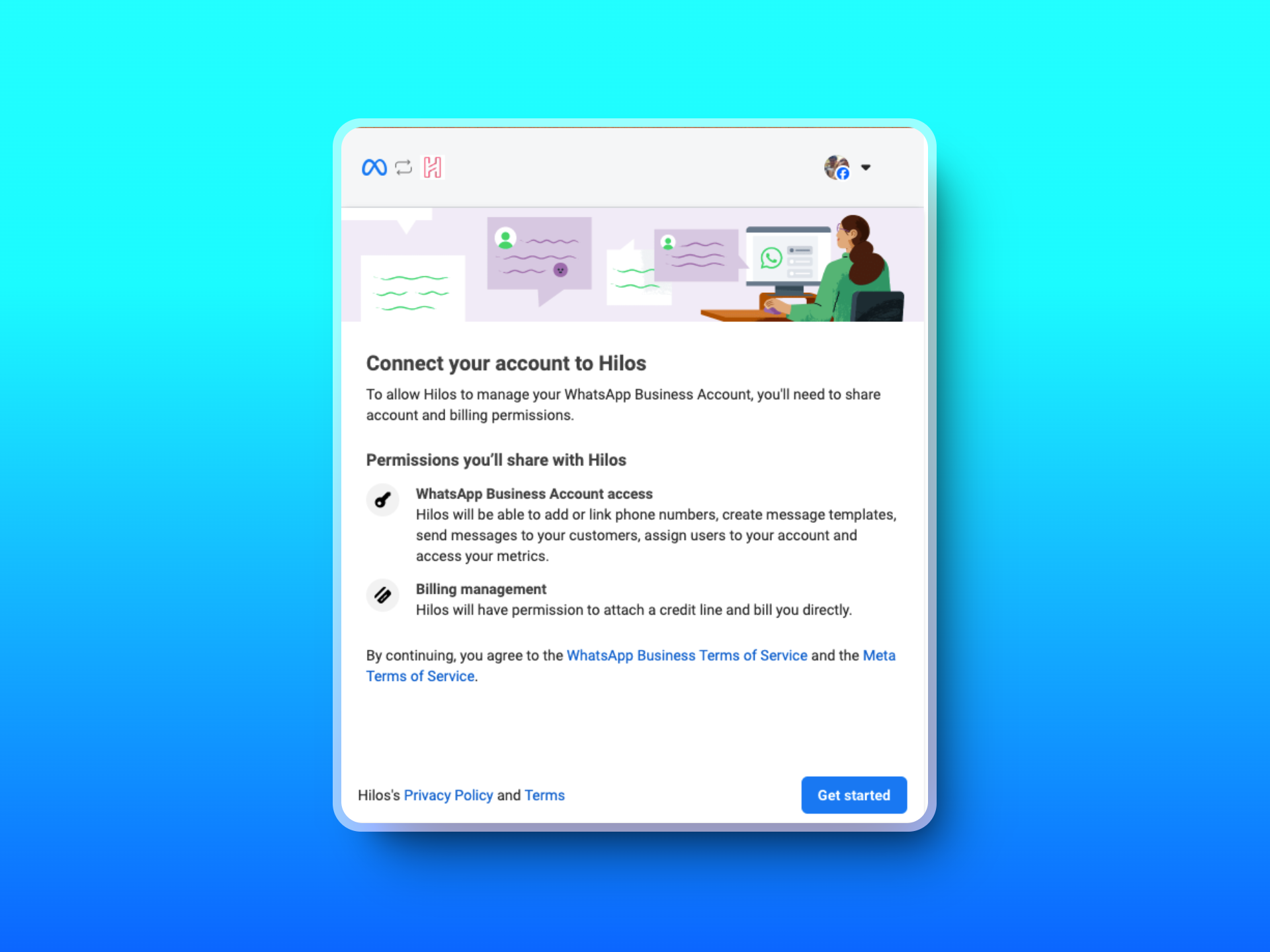
Authorize Hilos to interact with your business
5
Fill your business information
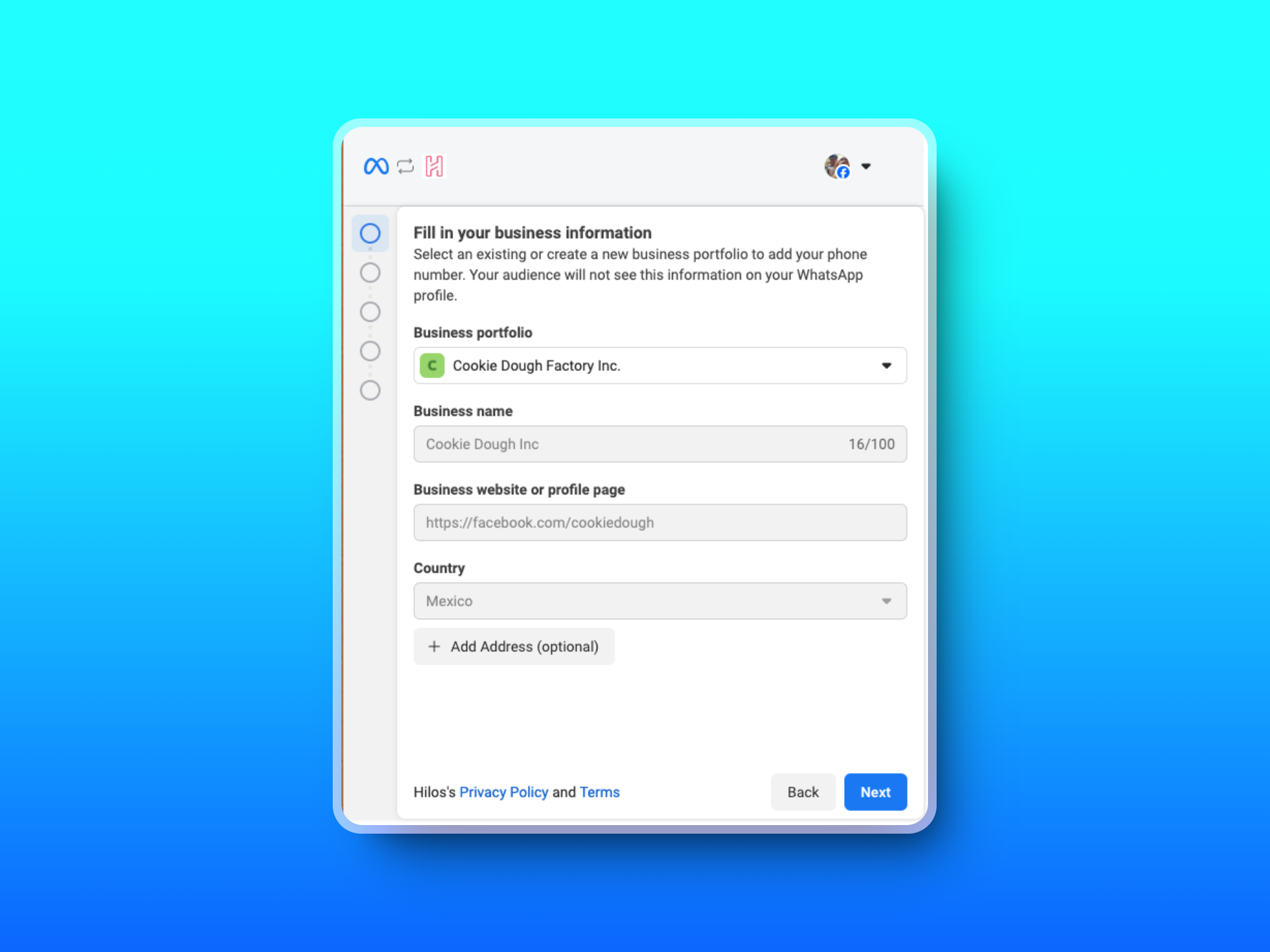
6
Create a new WhatsApp Account
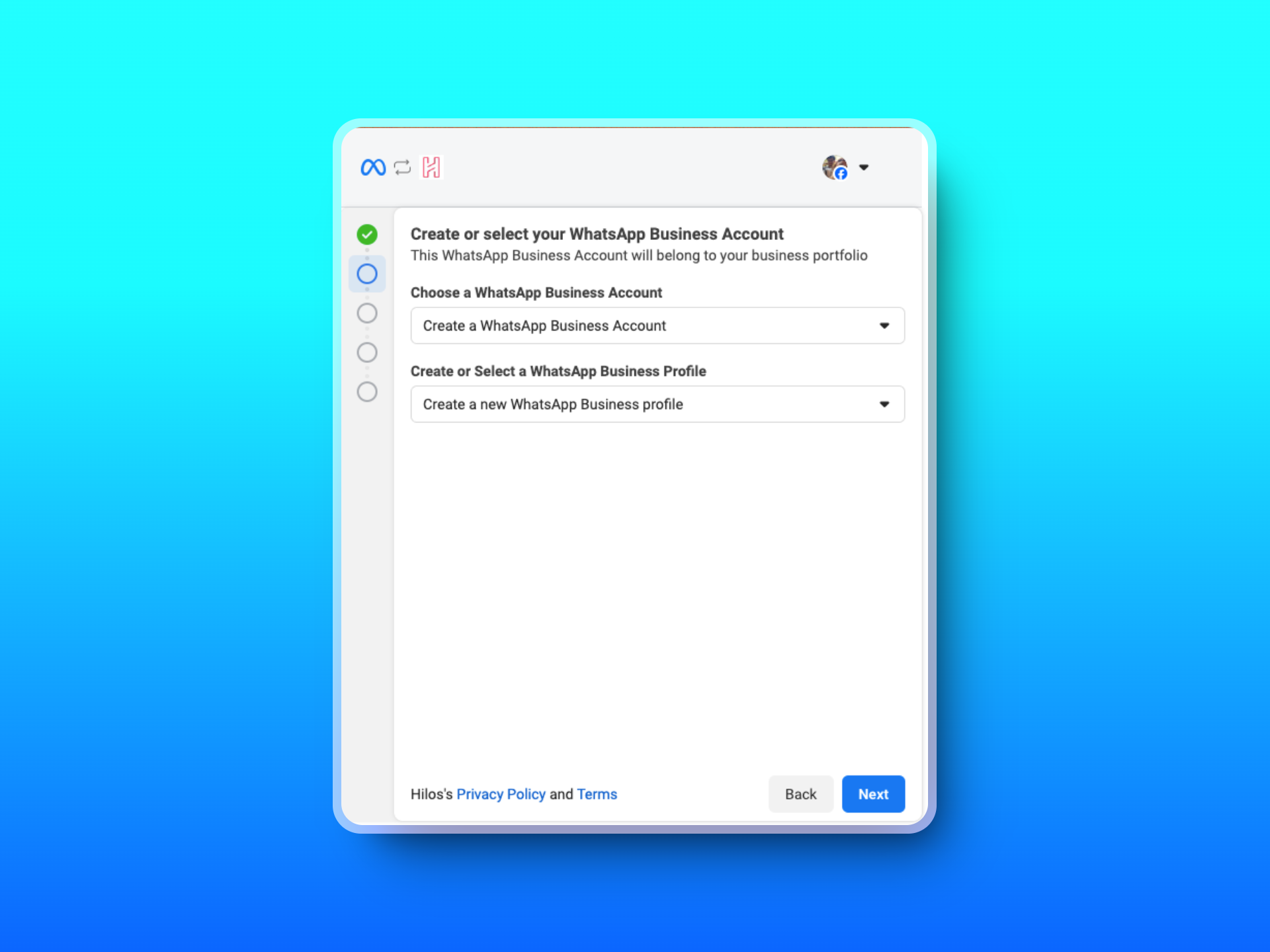
7
Add your WhatsApp Profile details

8
Verify your phone number via Phone call or SMS
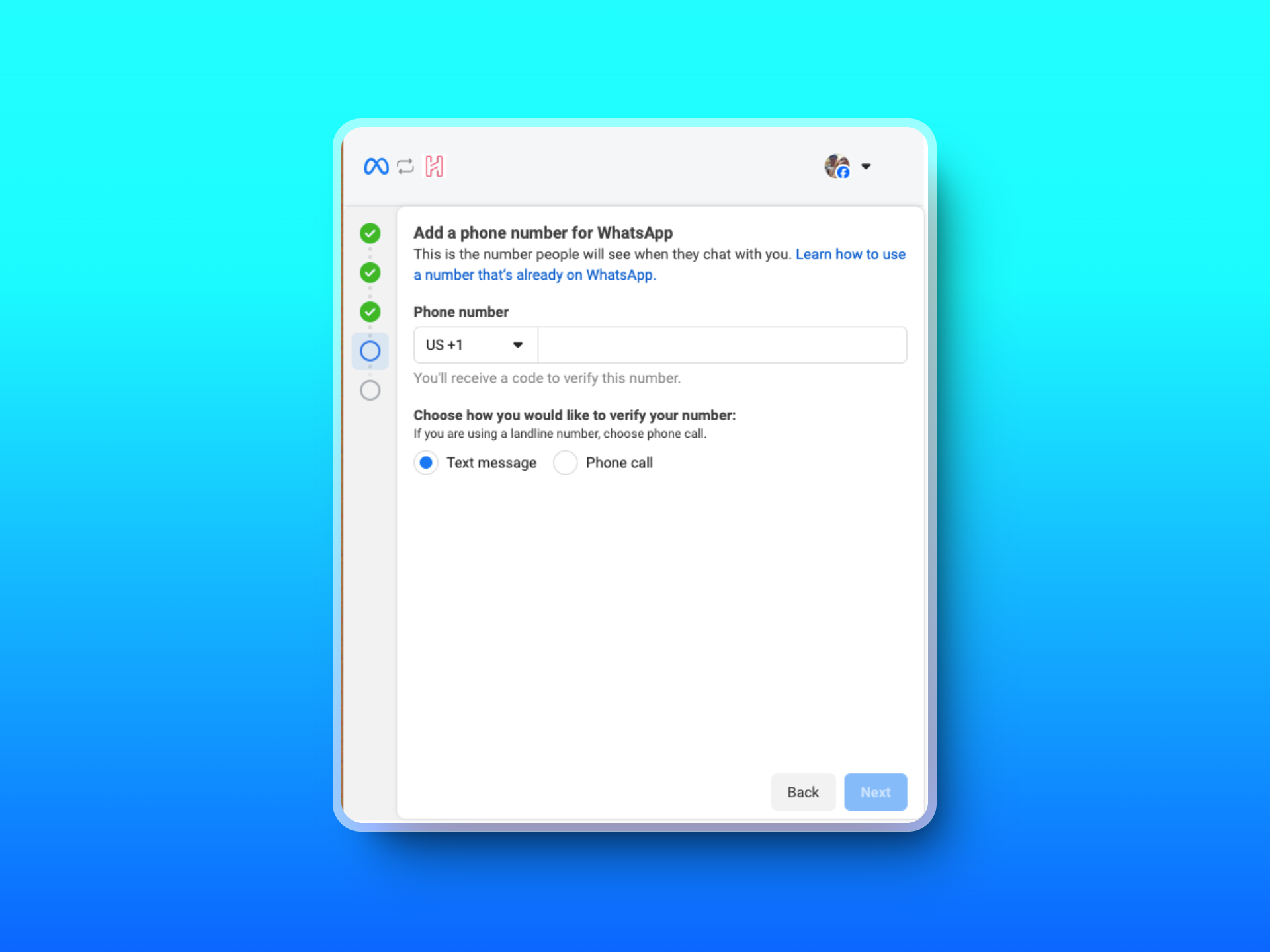
9
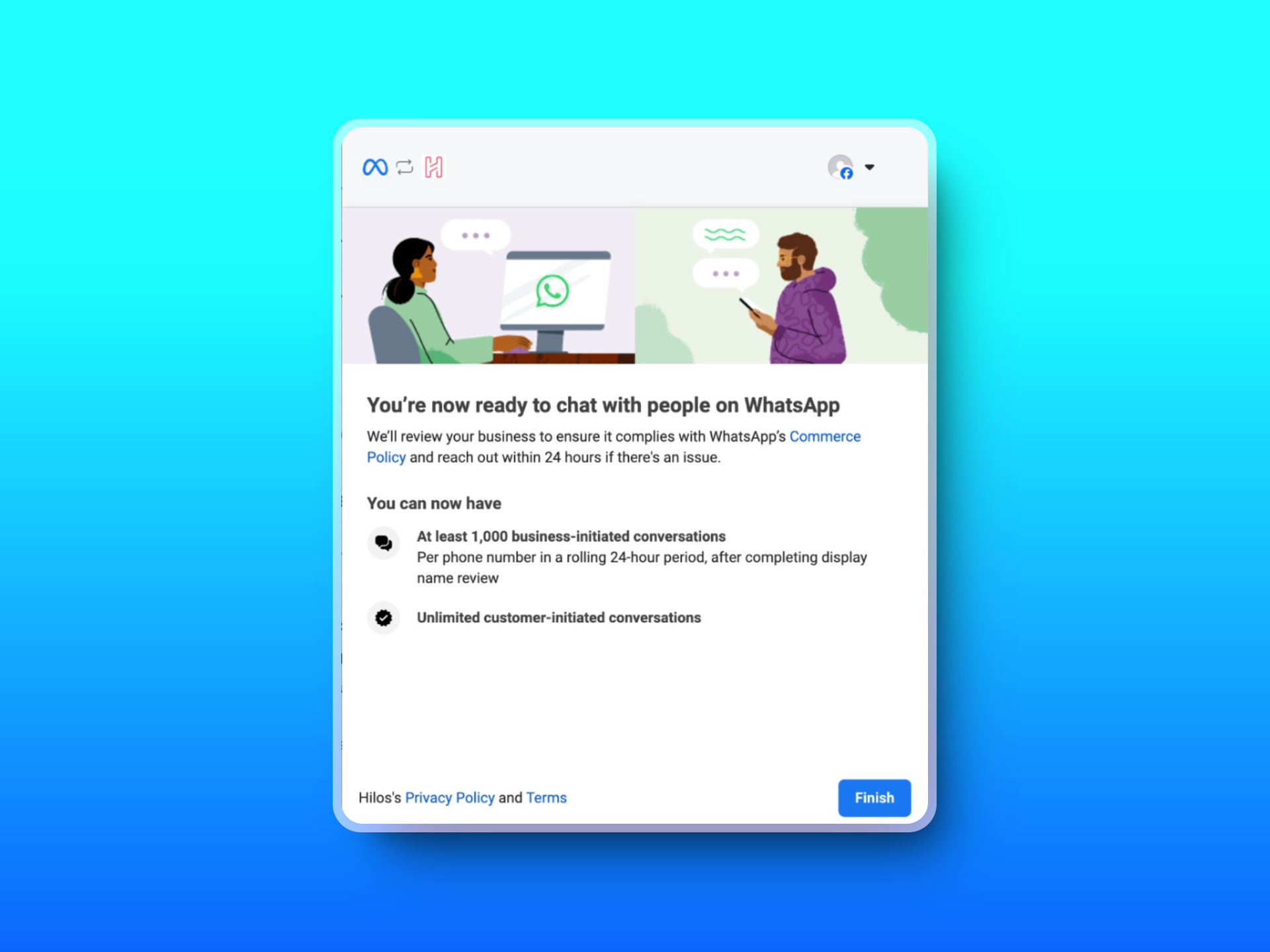
Wait a while and you're set
If you’re migrating from another BSP do not click on the Finish button until you’ve added a payment method to your account (check details below).
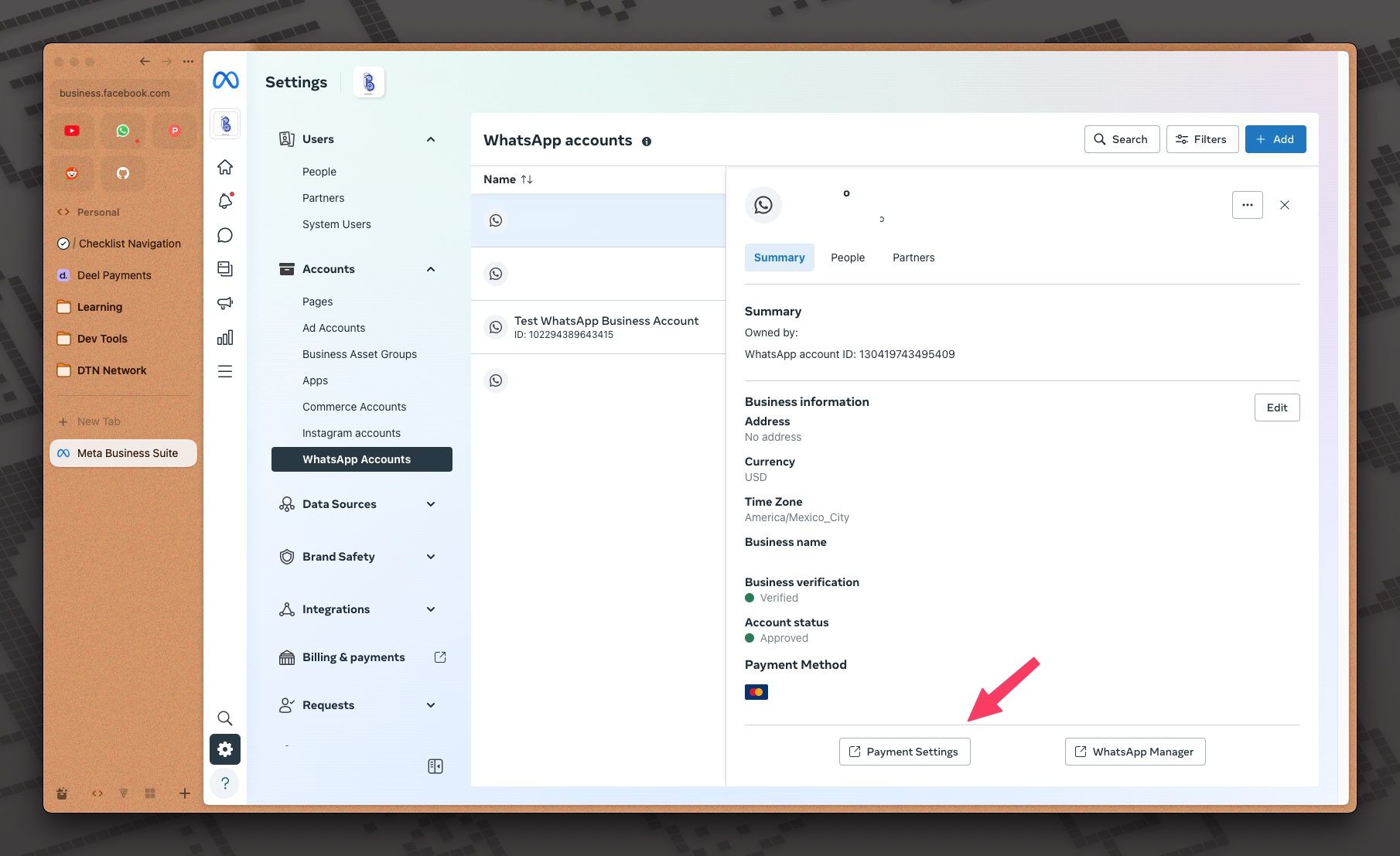
Adding a payment method
Adding a payment method
If your previous BSP offered a credit line for you you’ll need to add a payment method where you’ll be billed for your WhatsApp template usage before you finish the onboarding process. To do this go to your Business Manager WhatsApp Accounts and click on the newly created WhatsApp Account (You can identify it on the partners tab, you’ll see Hilos as the partner associated to that number) here click on Payment settings to add a card to your account.